How to get started with Briefcase as a client
Last updated: September 22, 2025
This guide covers how to setup your Briefcase account from when your accountant invites you to having full access to the platform.
Your accountant must invite you to Briefcase. If they have not done so already - please reach out to them.
Video walkthrough
What is Briefcase (0.00 - 0.31)
How to setup your account (0.31 - 1.42)
How to upload documents to Briefcase (1.42 - 3.56)
How to review and process transactions in Briefcase (3.56 - 7.01)
Summary
What is Briefcase?
Briefcase makes it easy to capture and share invoices and receipts with your accountant. We support the upload of purchase invoices, sales invoices, and bank statements.
How do I setup my Briefcase account?
Your accountant will invite you by email. Look out for an email with the subject "Welcome to Briefcase", click the link, and follow the steps to set up your account.
How do I upload documents to Briefcase?
There are three ways to upload information to Briefcase:
Direct Upload: Simply drag and drop documents at the "Upload documents" section and we will filter for duplicates, non-transactional items, and different document types.
Email: Save your unique Briefcase forwarding email address so that you can send invoices via email directly to your account.
WhatsApp: Either scan the QR code displayed during sign up with your phone's native camera or save our number (+447380878620) as a contact on your phone. Ensure that your phone number that has WhatsApp is connected to your Briefcase account which can be found in your "User settings".
The next section is only relevant for those that perform bookkeeping themselves. If your accountant handles this for you, then you just need to know how to upload documents.
How do I review and process invoices in Briefcase?
After you have uploaded documents to Briefcase, our AI will extract information and intelligently code relevant fields for each invoice. This includes:
Transaction information: Such as date, due date, reference number, supplier name, currency, and amount.
Account codes: Using your individual chart of accounts.
VAT rates: Based on HMRC legislation for the item purchased.
Once you have reviewed your invoice and are happy with the coding, simply select a publish location, press "Publish", and the invoice details will be sent straight to your Xero or Quickbooks account.
FAQs
What do I do if I didn't receive my invite email or verification email?
Please confirm that your accountant has invited you to Briefcase. If you still haven't received an email, check your spam/junk folder in case it went there. If you still face issues, reach out to us at support@briefcase.so
How do I add additional users to Briefcase?
Briefcase offers unlimited users for all connected entities. To add more people (such as employees) you will need to contact your accountant and share the emails of those you wish to add. They will then receive an email with the same sign up process as above
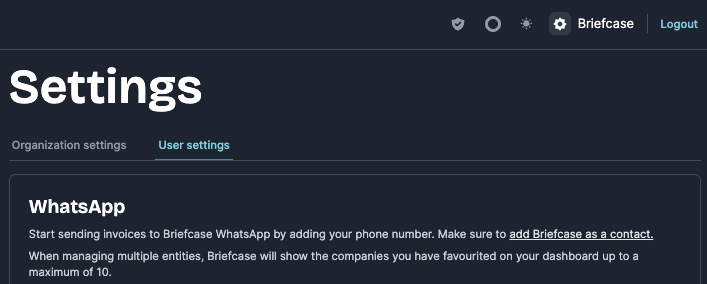
I didn't scan the WhatsApp QR code at sign up - where can I find it again?
You can always find your WhatsApp connection settings in the "User Settings" found by clicking the cog icon on the top right
Make sure to use your phones native camera to scan the QR code and to save us as a contact on your phone
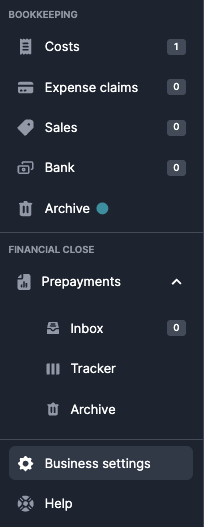
Where can I find my Briefcase email address?
You can always find your unique Briefcase email address in the "Business Settings" on the bottom left
Who do I contact if I need help?
If you have any questions or require support, please reach out to your accountant or to our team directly at support@briefcase.so