WhatsApp Upload
Last updated: June 10, 2026
Briefcase makes it easy to upload receipts, invoices, and other documents directly from your phone using WhatsApp. Simply send a photo or file to our WhatsApp Business number, and it'll appear in your Briefcase inbox ready for processing.
Video walkthrough
How to set up
Important: You must use a personal WhatsApp number to upload documents to Briefcase. Business WhatsApp numbers are not supported.
Add your mobile number to your user profile on the Briefcase settings page
Add Briefcase's number (+44 7380 878620) to your WhatsApp contacts by clicking here or scanning the QR code below from your phone

Upload pictures of invoices and receipts to the Briefcase contact on WhatsApp
Upload flow
After you send your initial documents in the chat, you'll receive a follow-up message with the option to "Submit" the documents as there are or "Make Changes".
Tap "Make Changes" to:
Add more documents (from your device or by taking new photos)
Merge multiple pages into a single PDF (ideal for multi-page receipts or invoices)
Add notes to your submission (these will appear in the dashboard next to the processed document)
Switch the organisation you're uploading to (if you have multiple favourited organisations)
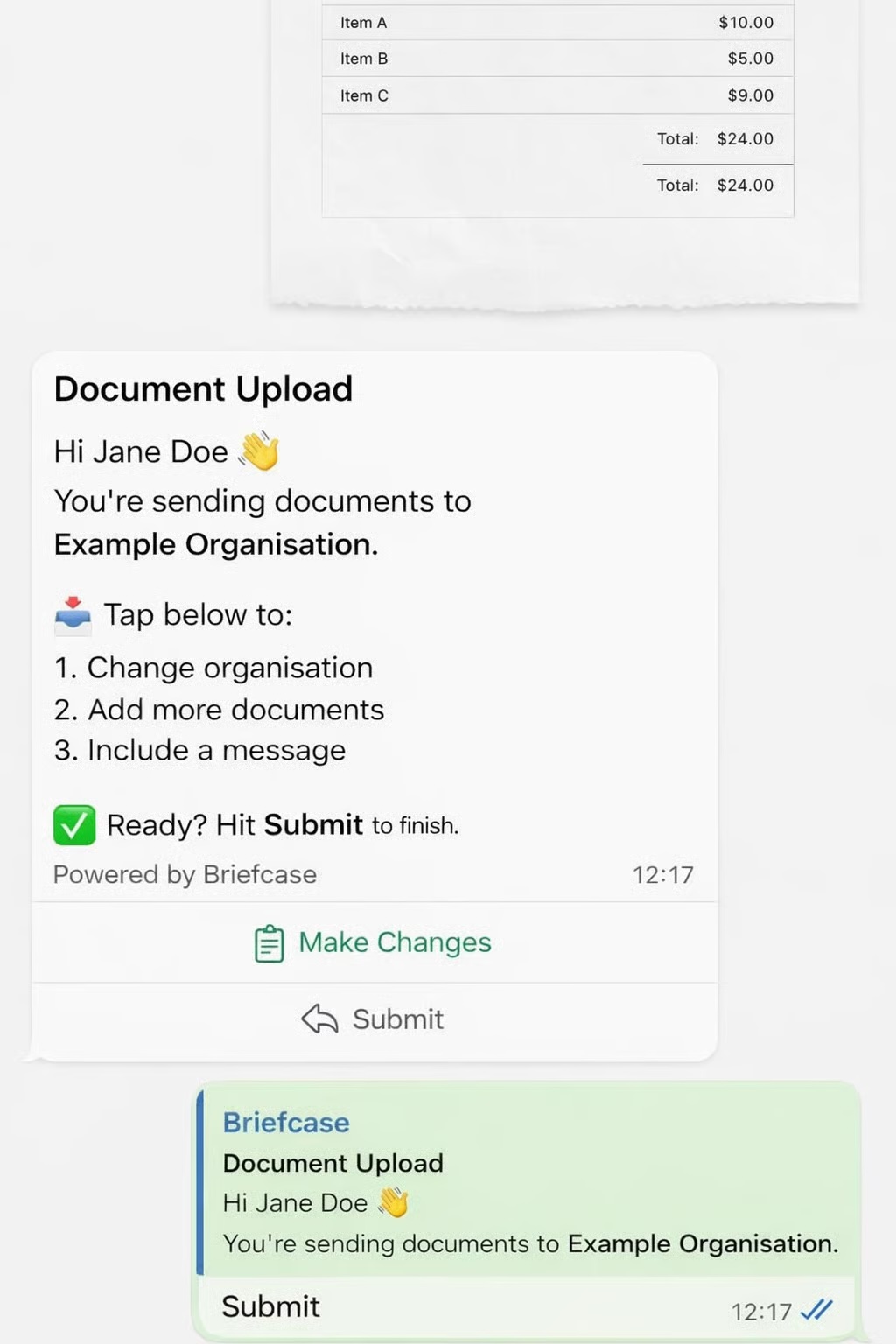
How to manage multiple entities on WhatsApp
If you have multiple favourited companies in Briefcase, when you upload a document Briefcase will automatically suggest the last company you uploaded to. Simply tap "Submit" if you're happy with the selection.
To change company, tap "Make Changes". Briefcase will show a list of your favourited companies — select one from the list and complete the flow to upload your document.
How the company list works
WhatsApp displays a maximum of 20 companies in the selection list
Only companies you've favourited on your dashboard will appear (you can favourite or unfavourite companies from the dashboard at any time)
If you have just one favourited company, uploads go straight to that company automatically — no selection appears
If you update your favourites, send another document on WhatsApp to refresh the list. The updated selection will appear from your next upload onward
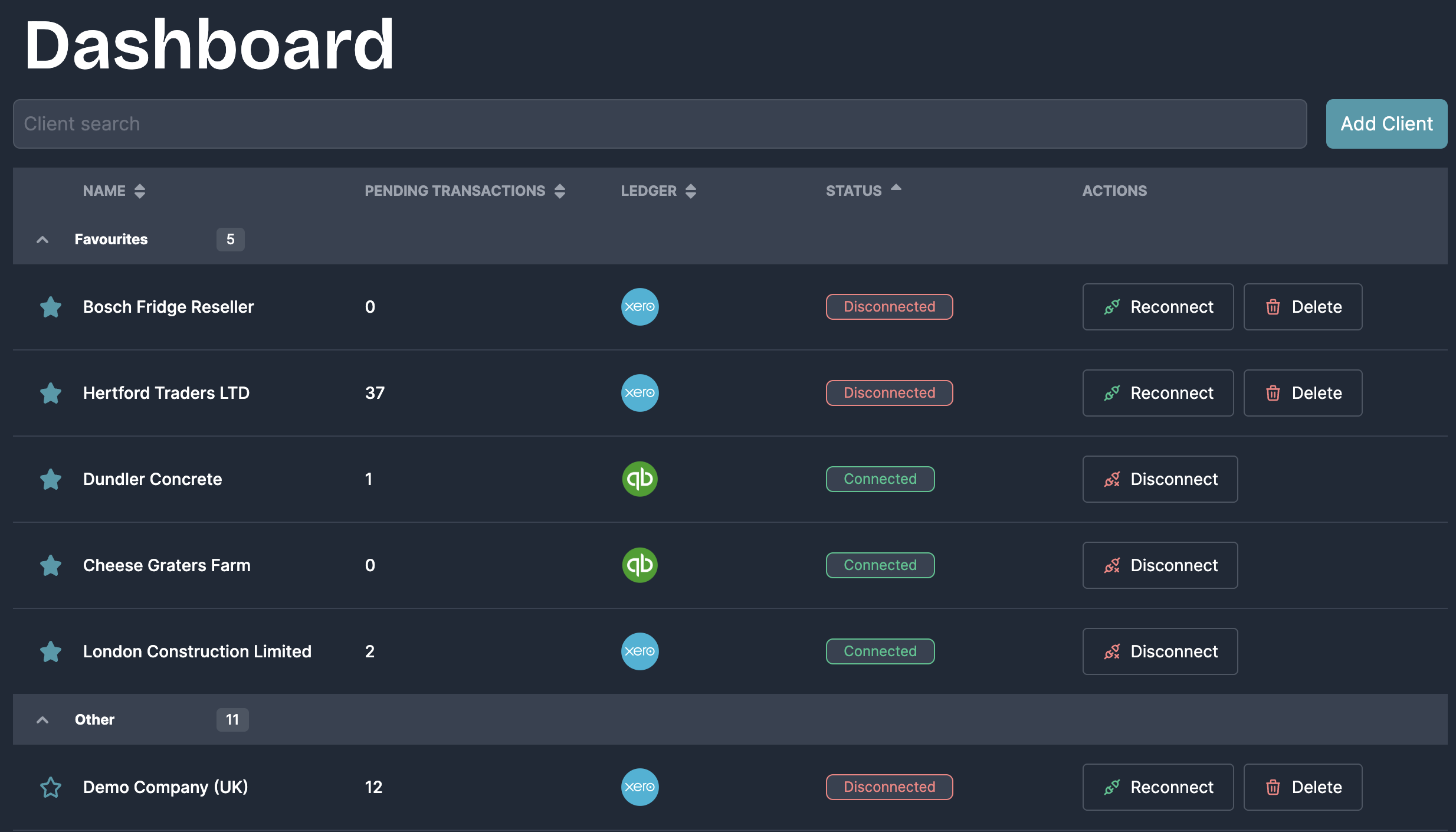
Our AI will detect for duplicates against documents uploaded to Briefcase directly, for example if a client sends a receipt via WhatsApp and also uploads it in a digital format.