How does Briefcase handle Accrued Expenses?
Last updated: February 24, 2026
This guide covers how AI agents detect accrued expenses, draft adjustments and post journal entries.
When you upload an invoice, after our bookkeeping AI agent codes transactions, our accrued expenses AI agent also reviews the transaction. It groups similar transactions together in a recurring expense and suggests relevant adjustments.
How it works
Accruals
Upload an invoice via email, web or WhatsApp. Once the bookkeeping workflow finishes, the accrued expense AI agent analyses the transaction and groups it with similar transactions if it detects a recurring expense. Recurring expenses can be detected on the following frequencies:
Monthly
Quarterly
Annual
At the end of each month, the agent checks to see if any recurring expenses are missing an invoice for this period. If the agent cannot find an invoice, it will suggest an accrual, debiting the expense account and crediting the accruals account, which is visible in the new Accrued Expenses tab
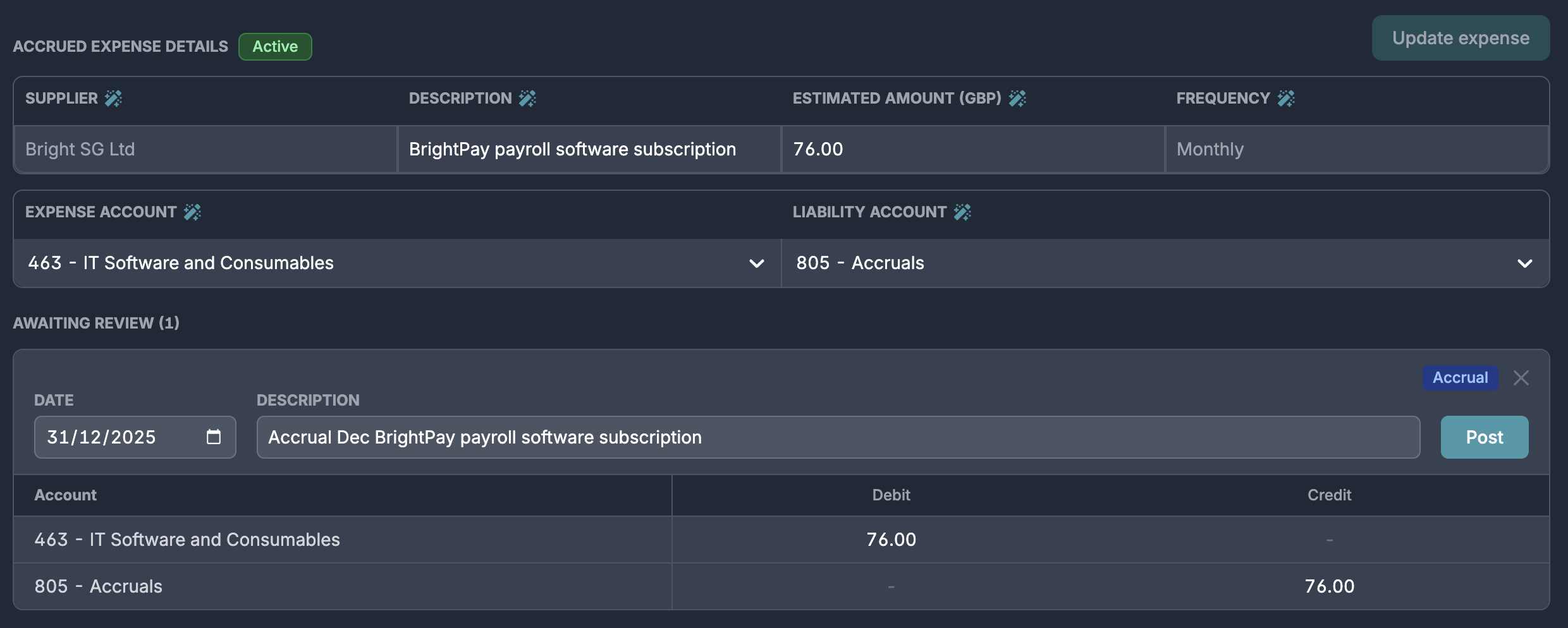
Review and post the accrual, Briefcase will then post the journal to the ledger
Reversals
Upload an invoice via email, web or WhatsApp. Once the bookkeeping workflow finishes, the accrued expenses AI agent analyses the transaction. If it detects the transaction to be part of an existing recurring expense, it will check to see if the expense has any outstanding accruals for the period of the invoice.
For each accrual found, it will create an equal and opposite reversal, debiting the accruals account and crediting the expense account, which is visible in the new Accrued Expenses tab
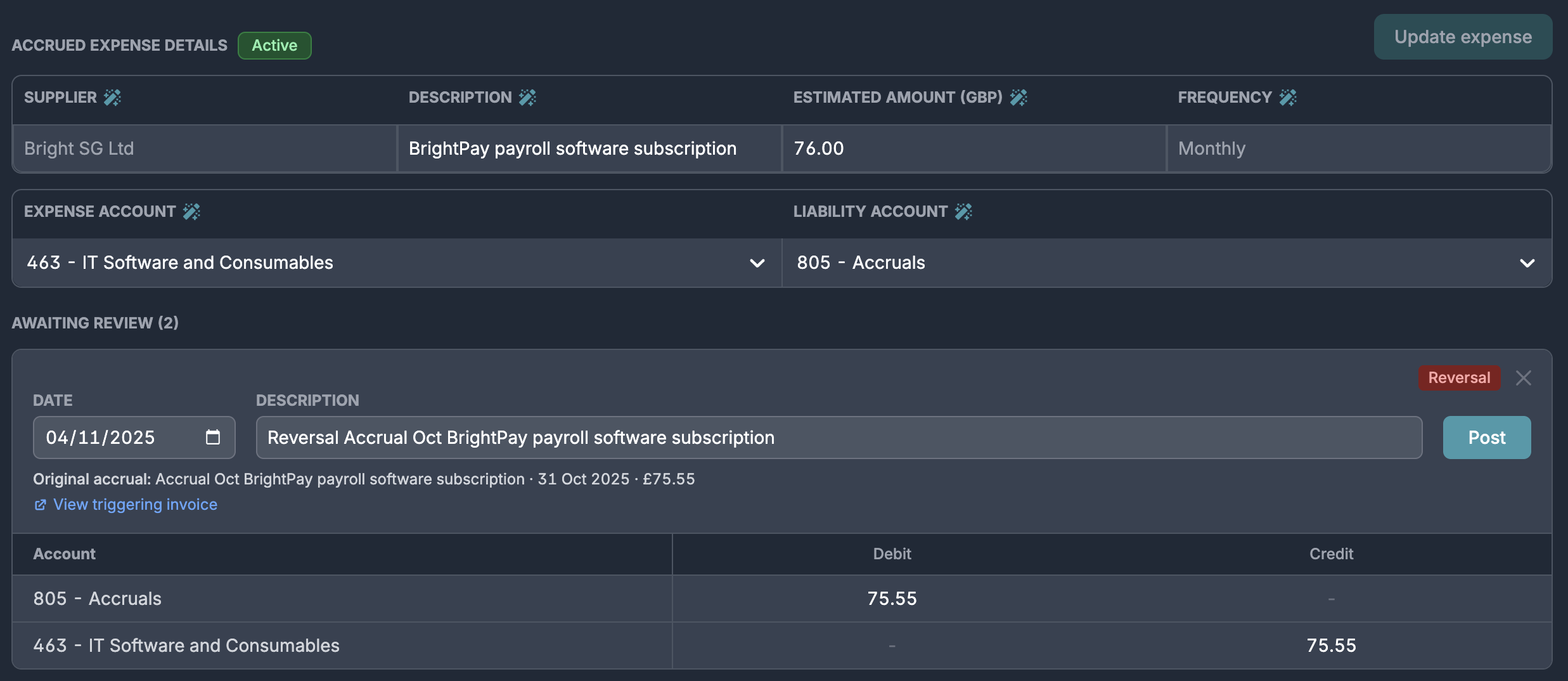
Review and post the reversal, Briefcase will then post the journal to the ledger
You are always in control, which means that you can always reject or reverse an adjustment
Managing your accrued expenses tracker
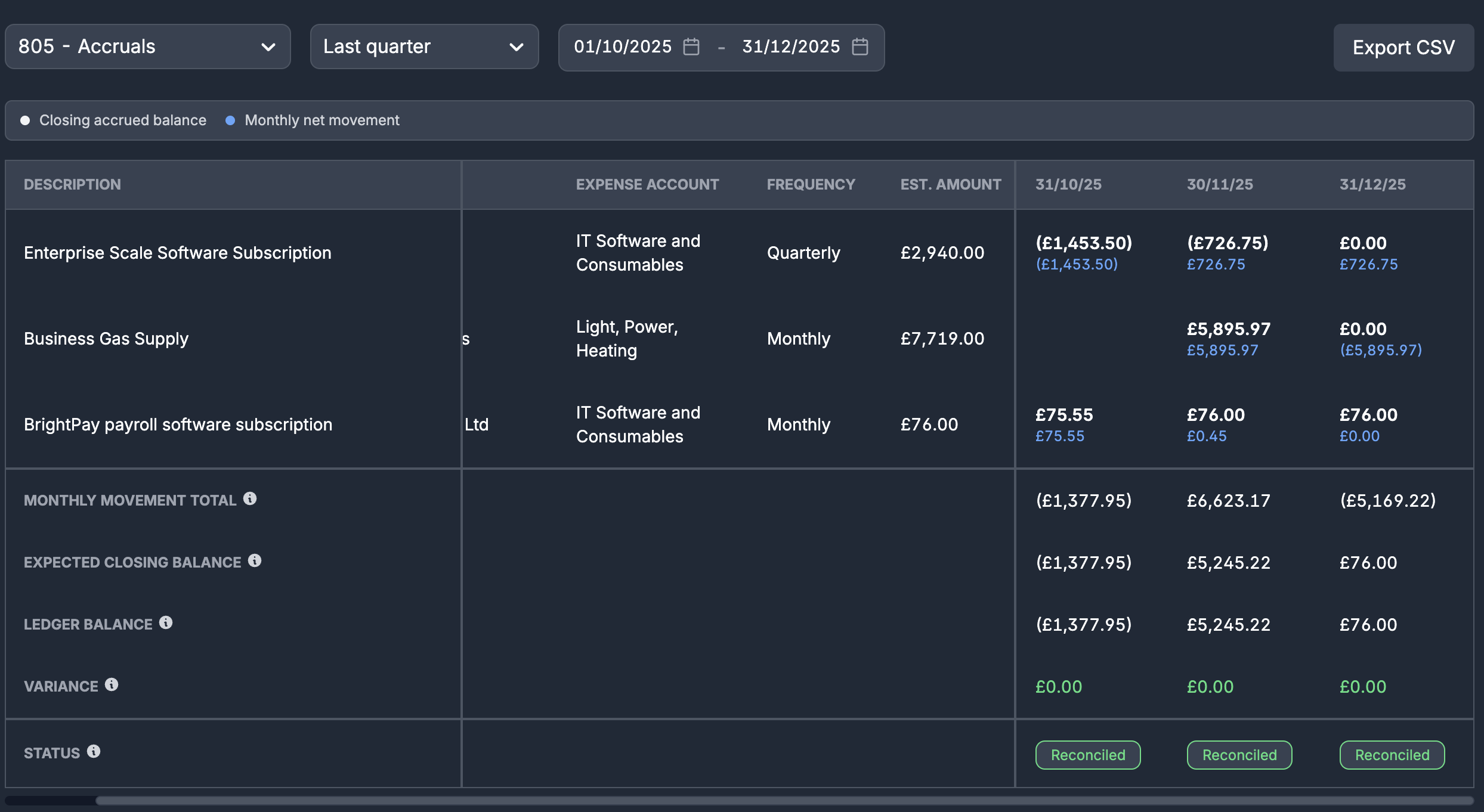
The accrued expenses tracker shows you a breakdown of the closing accrued balance and monthly net movement on a per-accrued expense basis as well as overall:
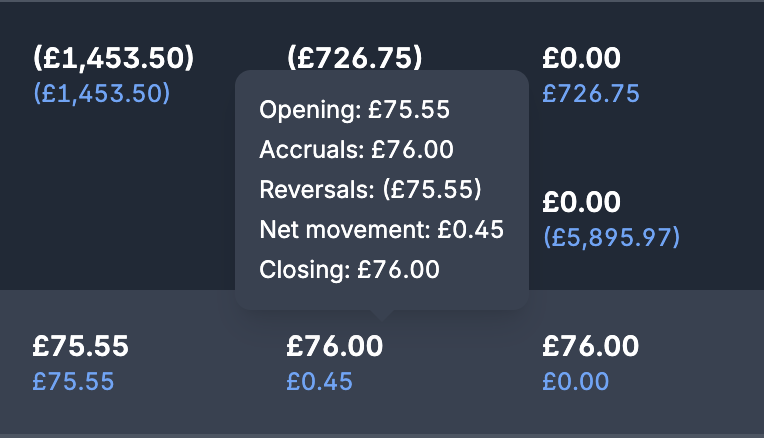
Hovering over a cell in the table, will give you a detailed breakdown of how the closing balance and net movement was calculated:
In the summary rows at the bottom, we retrieve your ledger's balance and automatically reconcile it to ensure accuracy and consistency:
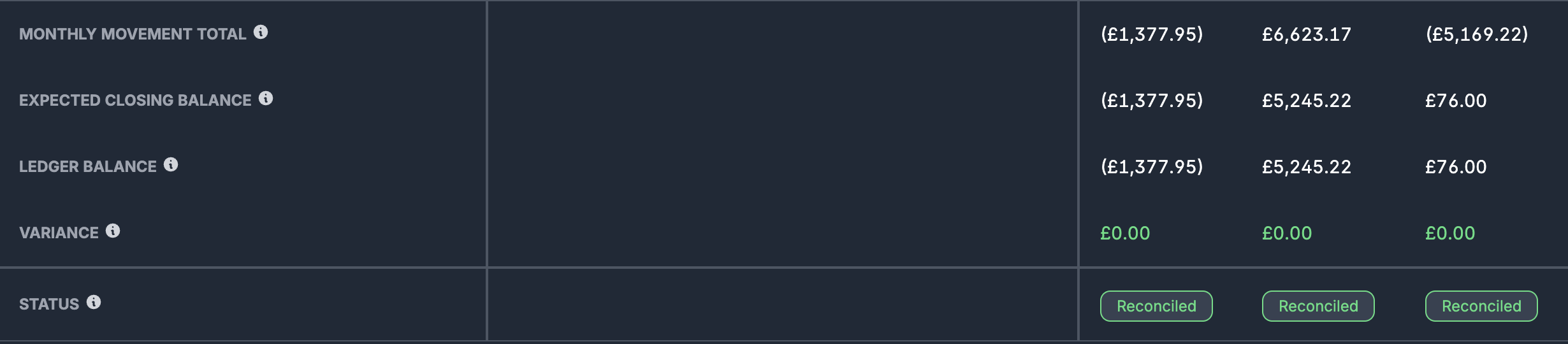
You can easily export the accrued expenses tracker in Briefcase into a CSV by clicking "Export CSV"
Manual Accrued Expenses
Manual accruals can be created by clicking "Add accrued expense" from the Accrued Expenses inbox page. This will bring up a modal asking for some additional information:
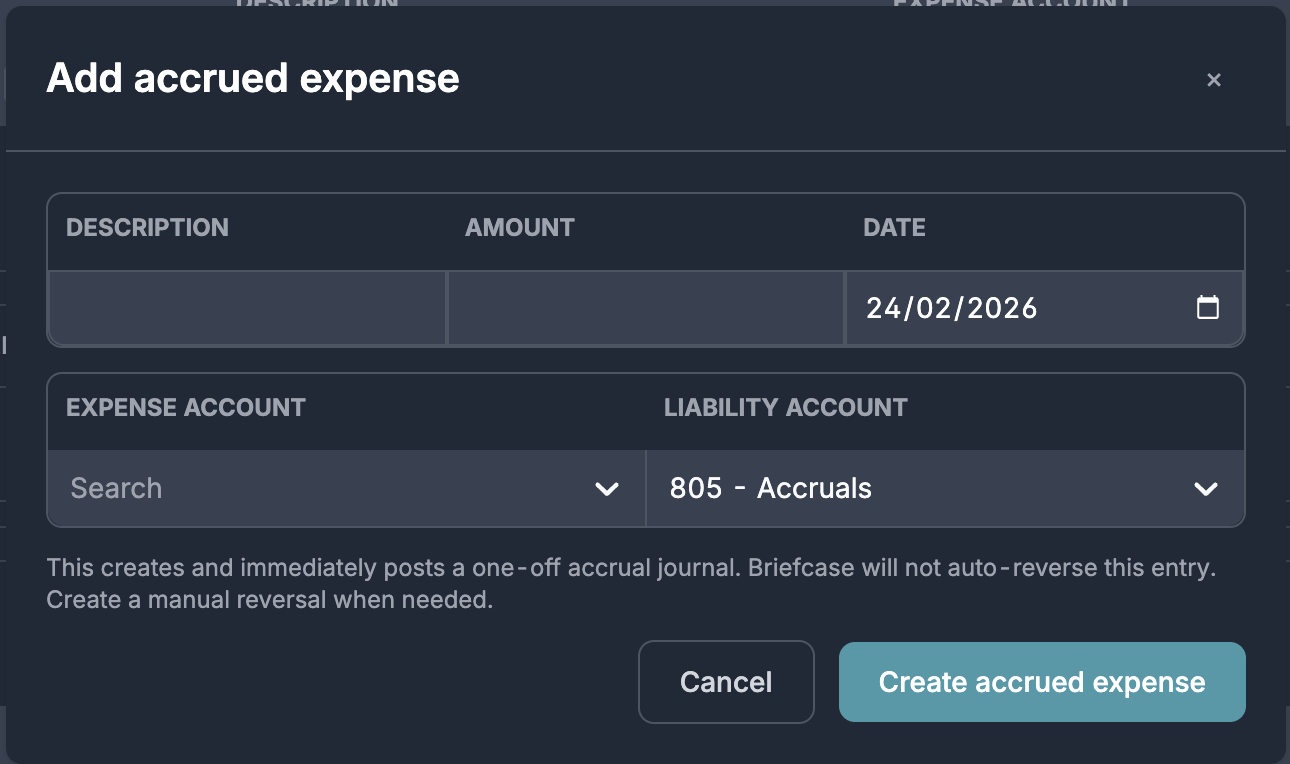
Enter the description, amount, date and expense account for the accrual, then click "Create accrued expense". This will automatically post the accrual to your ledger.
Once you have created the accrual, you will be able to see it in the "active" section in the inbox. When you are ready to create the reversal, click on the accrued expense and then from the accrued expense details page, click "Add adjustment":
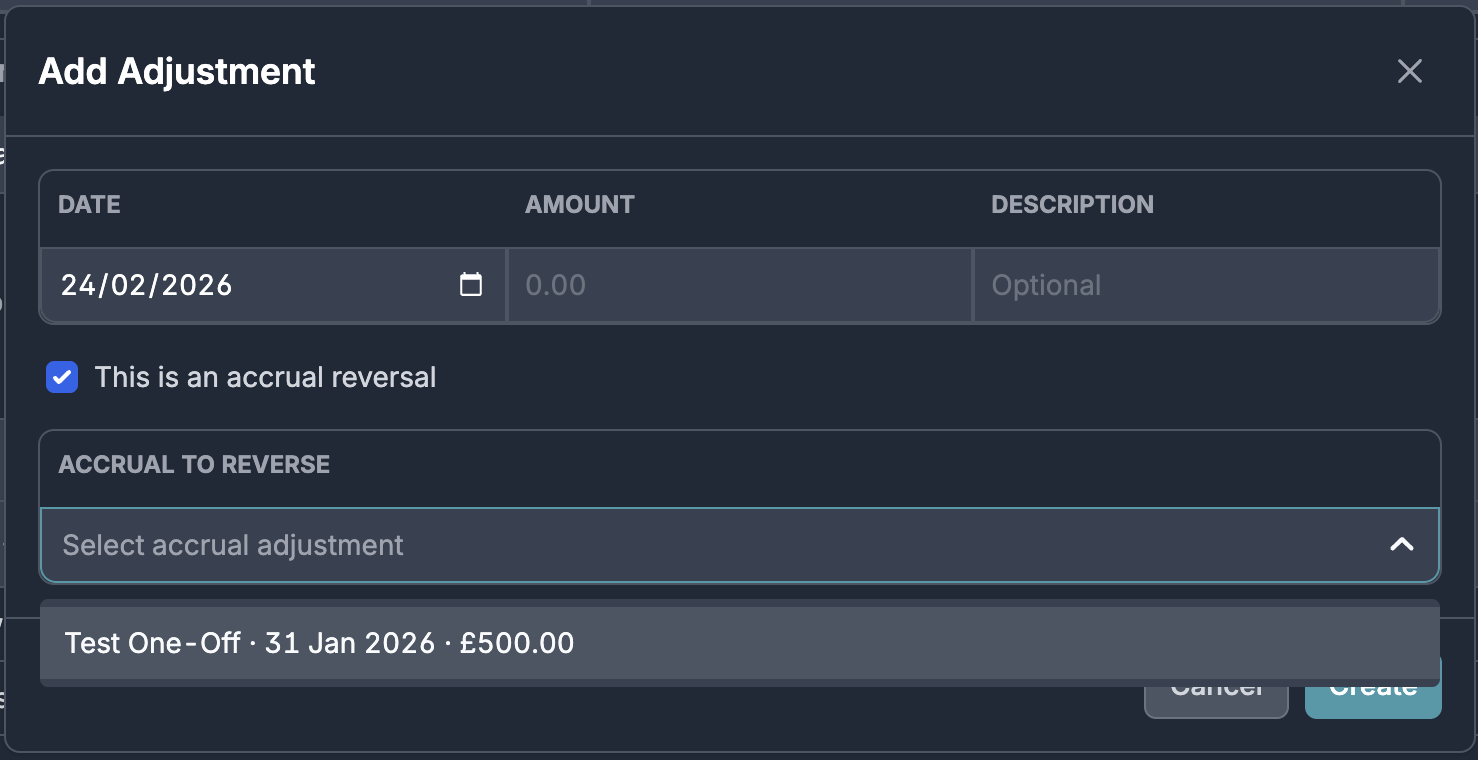
This will bring up another modal. Ensure you tick "This is an accrual reversal" to link the reversal to the original accrual. Review and create the reversal.
Multi-line accrued expenses
Briefcase can currently only suggest adjustments on single-line invoices. Invoices with multiple line-items will not be processed as accrued expenses.