How does Briefcase handle fixed assets & depreciation?
Last updated: June 26, 2026
This guide covers how AI agents detect fixed assets, drafts depreciation schedules and posts monthly journal entries.
When you upload an invoice, after our bookkeeping AI agent codes transactions, our fixed asset AI agent also reviews the transaction. If it recognises a fixed asset, it will check whether the fixed asset is depreciable and draft a depreciation schedule for the asset if it is.
When you publish the depreciation schedule, Briefcase will post the monthly journal entries automatically.
How it works
Upload an invoice via email, web, or WhatsApp. Once the bookkeeping workflow finishes, the fixed asset AI agent analyses the transaction and flags to you if it detects a fixed asset.
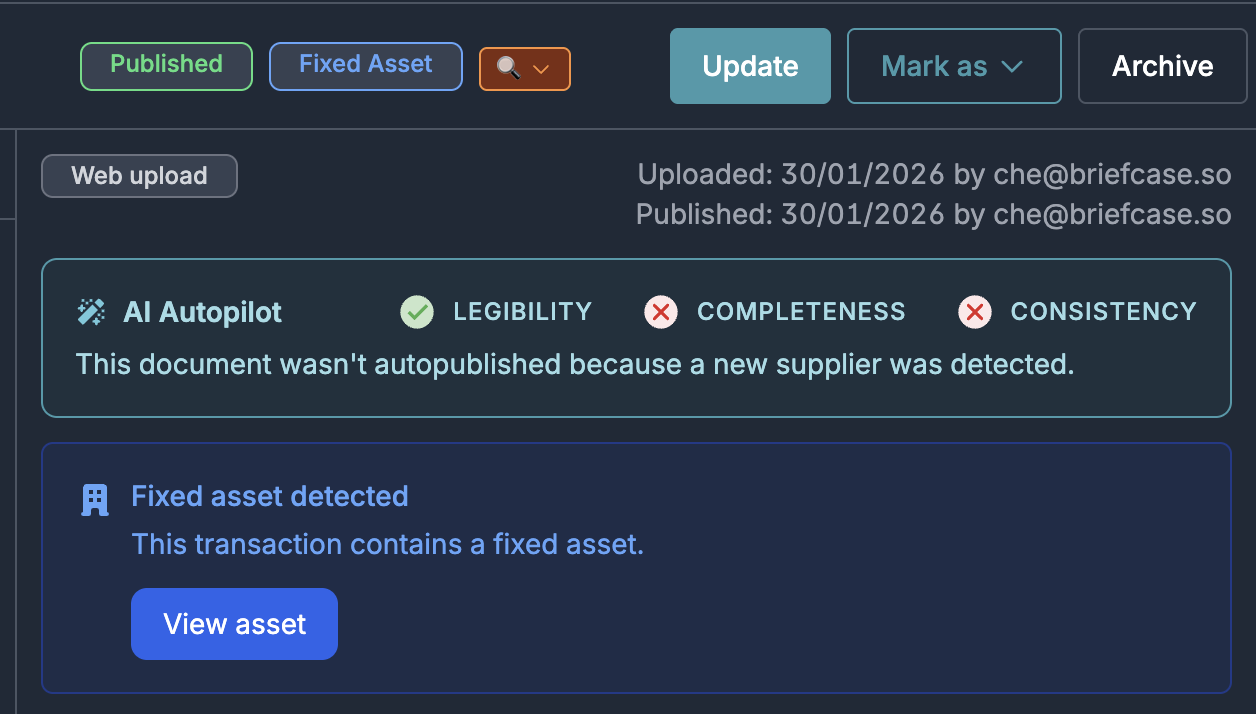
For each of the line items that is categorised to a fixed asset account, if the asset is detected as depreciable, the agent determines the following parameters to create the depreciation schedule:
Useful life (length of the depreciation schedule)
Residual value (value of the asset at the end of its useful life)
Depreciation account (account to use to record the accumulated depreciation)
Expense account (account to use to record the depreciation expense
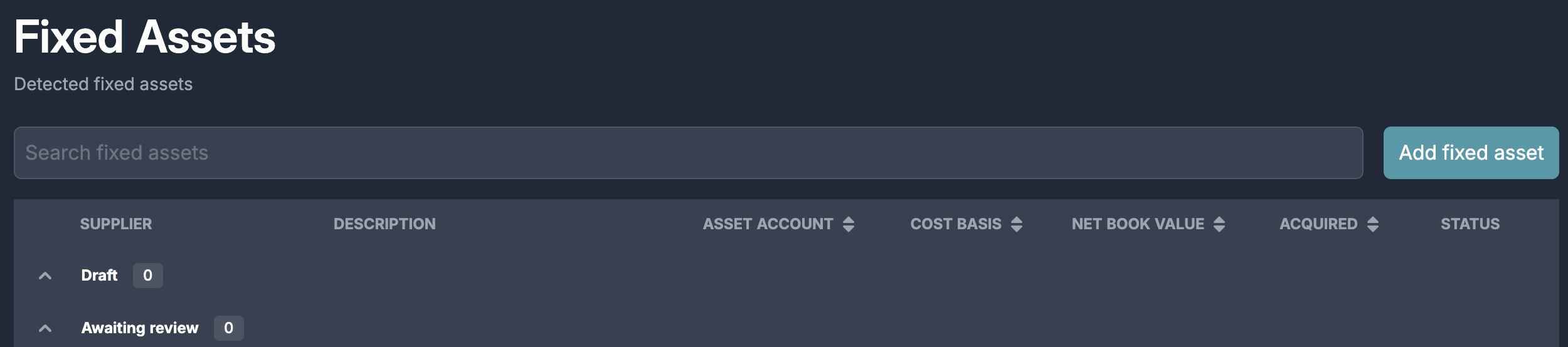
Using the parameters, the AI agent creates a draft depreciation schedule for the fixed asset which is visible in the new Fixed Assets tab.
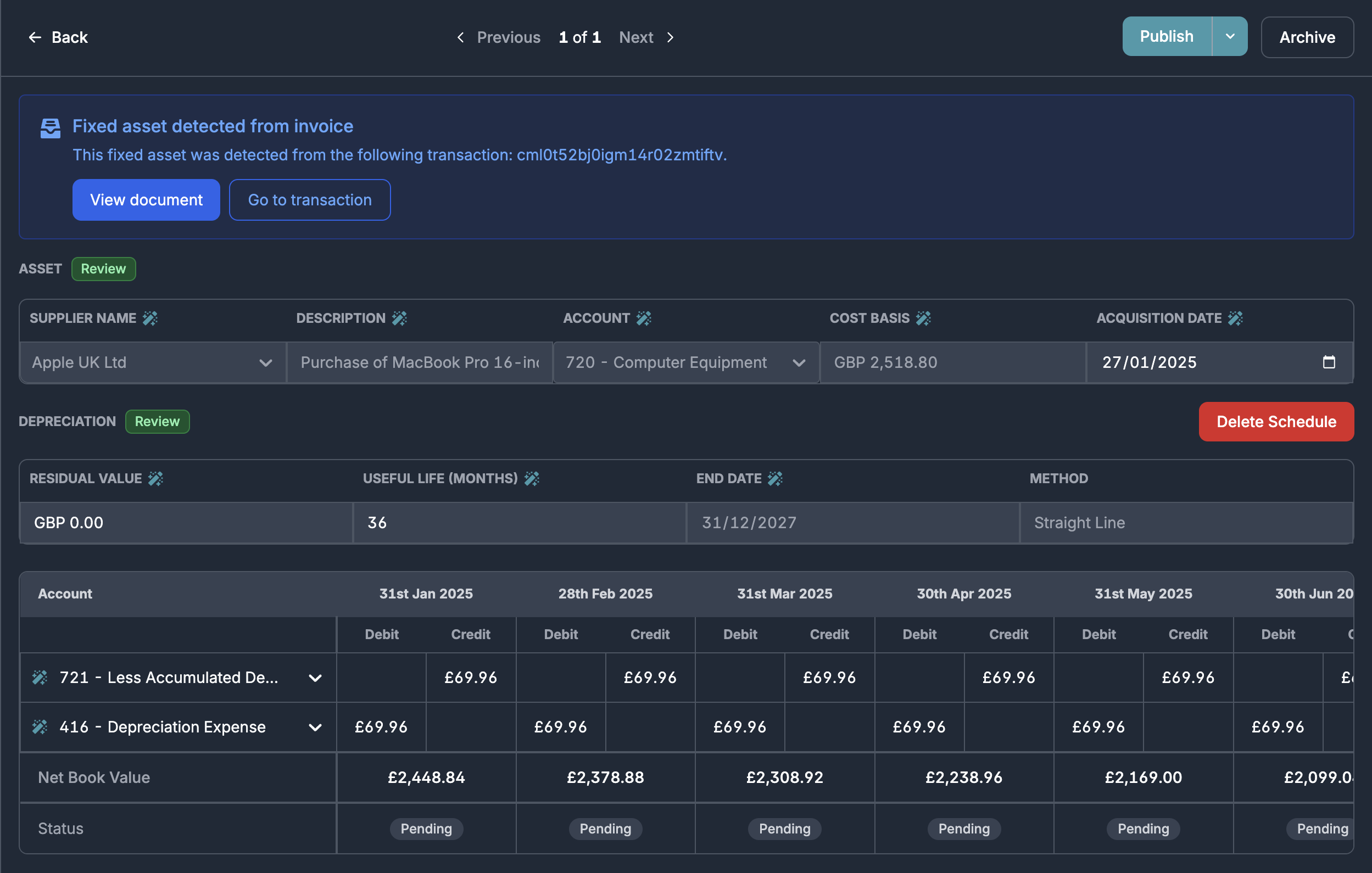
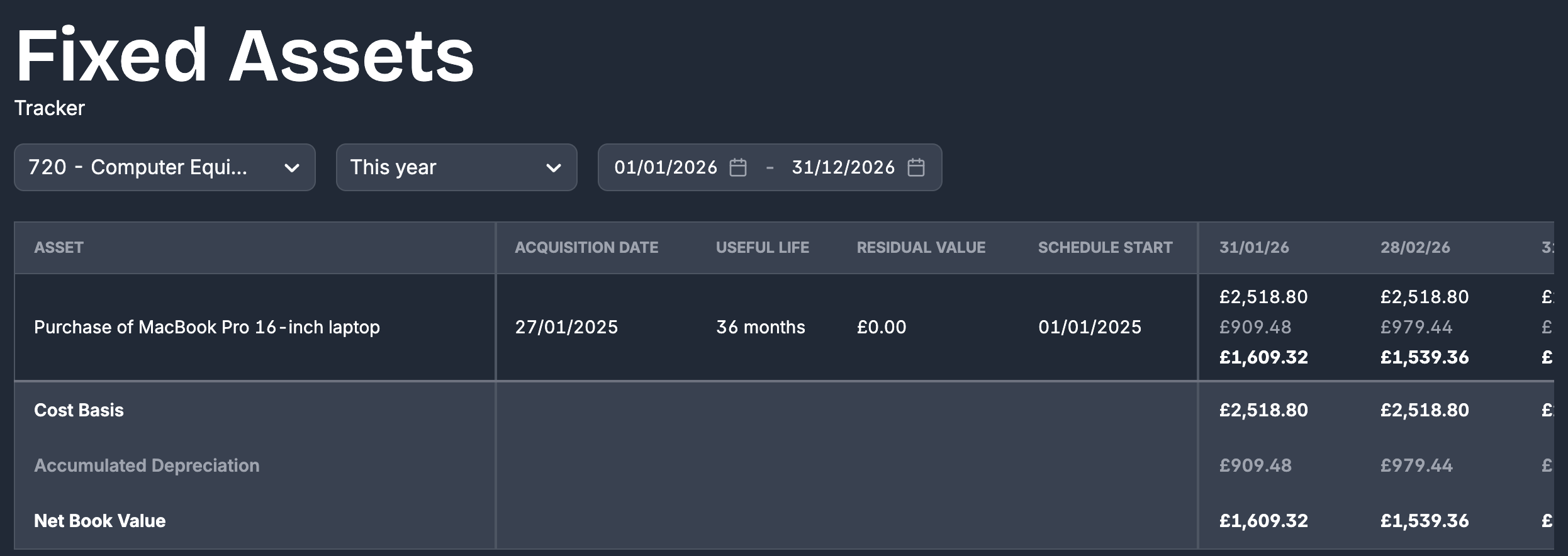
Review and publish the schedule, Briefcase will then post the journals on each period end. Depreciation schedules can then be viewed in the tracker.
You are always in control, which means that you can always update or reverse a schedule whenever needed.
Migrating existing Fixed Assets and Depreciation Schedules to Briefcase
To bulk import assets, follow this guide.
To create an asset:
Select "Add asset" within the fixed assets inbox to manually create a fixed asset.
Enter the Supplier Name of the fixed asset
Add a Description
Choose the Fixed Asset Account where the asset has been capitalised
Enter the Cost Basis of the fixed asset
Select the Acquisition Date
Enter the Residual Value (value at the end of the asset's useful life)
Enter the Remaining Useful Life
Enter the Schedule Start Date (this is the date from which Briefcase will start tracking depreciation). The End Date of the schedule will then be automatically calculated based on the start date and useful life.
Enter the Accumulated Depreciation to Date (if this asset is partially depreciated, enter the total amount of depreciation to date)
In the table, select the Contra-asset (accumulated depreciation) and Depreciation expense accounts (these are the accounts used when posting the journals
Review the schedule and hit Publish
Don’t forget to remove any recurring journals for this fixed asset's depreciation in your ledger to avoid double posting.
Briefcase will not post depreciation journals for the tracked periods. We assume that this is already posted.
Adding fixed assets that have been fully depreciated
Briefcase supports the ability to add existing fixed assets which are already fully depreciated for tracking purposes. This is useful if you are using Briefcase's fixed assets tracker or working papers. To do this:
Click "Add asset" within the fixed assets inbox as normal.
Click the "Already depreciated" switch:
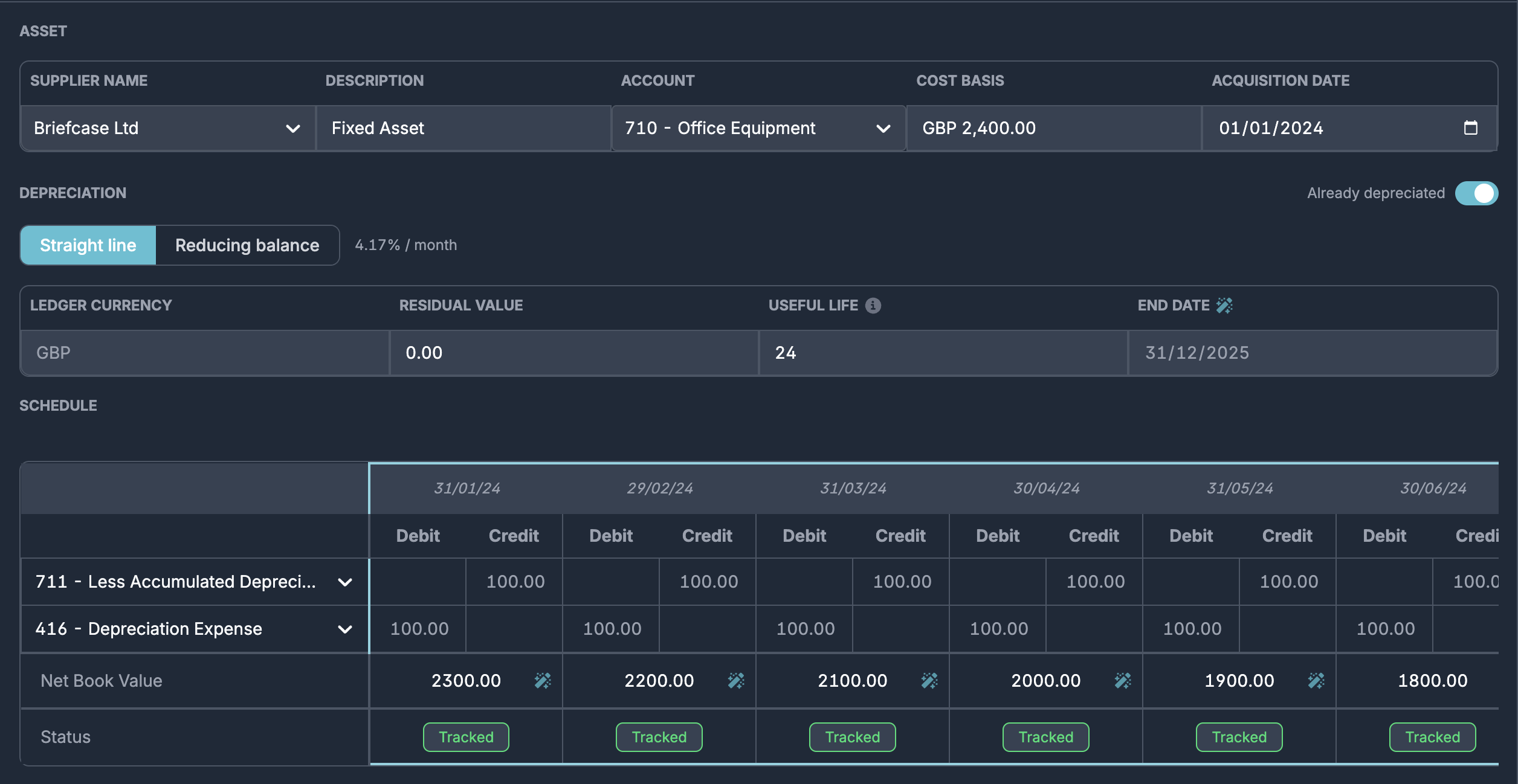
Fill in the rest of the information as normal. You will notice that all the periods in the schedule are shown as tracked periods. This means that Briefcase will not post any journals to your ledger.
Review the schedule and update any of the net book value estimates for each period if they are wrong. This will ensure that the tracker reconciles correctly.
Review and publish the schedule as normal
Managing your Fixed Assets tracker
You can filter the fixed assets tracker by asset account and time period to view all registered assets and their net book value over time
Disposing of Fixed Assets
From the fixed asset details page, click "Actions" then dispose

This will open a modal. In the modal, enter the disposal date, proceeds and proceeds account, then click "Next"
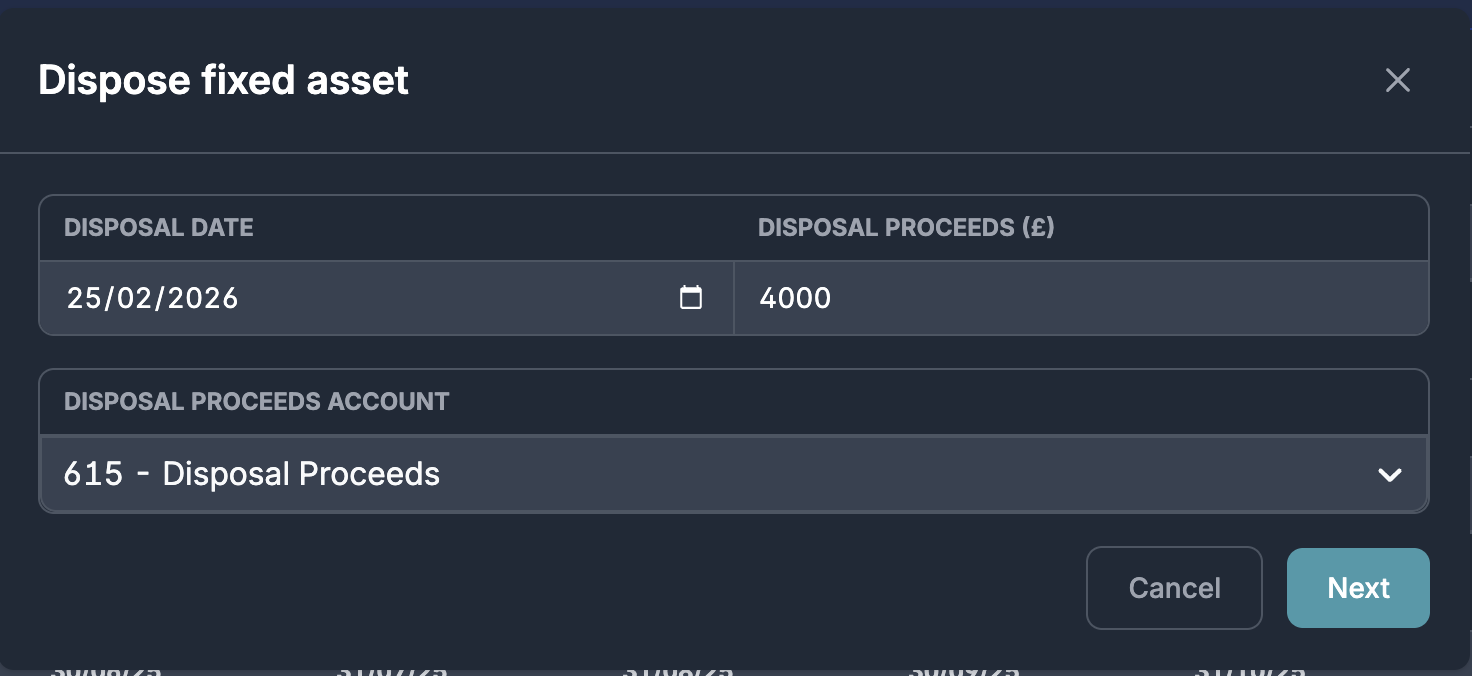
Note that any depreciation journals posted after the disposal date will be reversed. If the disposal proceeds are greater than the net book value of the asset on the disposal date a gain will be recorded, otherwise a loss will be recorded.
Enter the gain/loss on disposals account. You will then see a preview of the journal that will be posted to dispose of the asset:
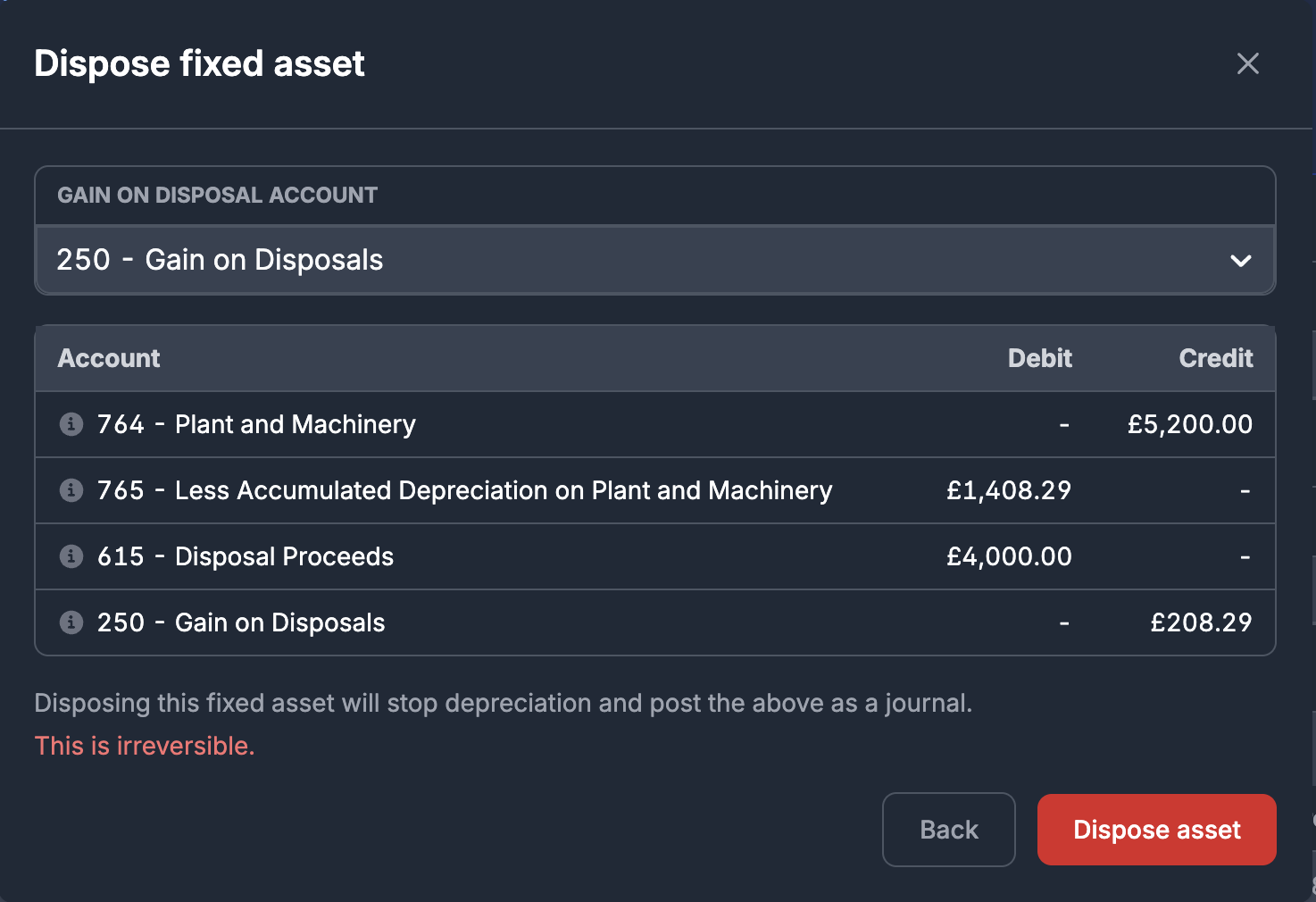
Review and click "Dispose asset". This will post the disposal journal to your ledger and stop the depreciation schedule for this asset.
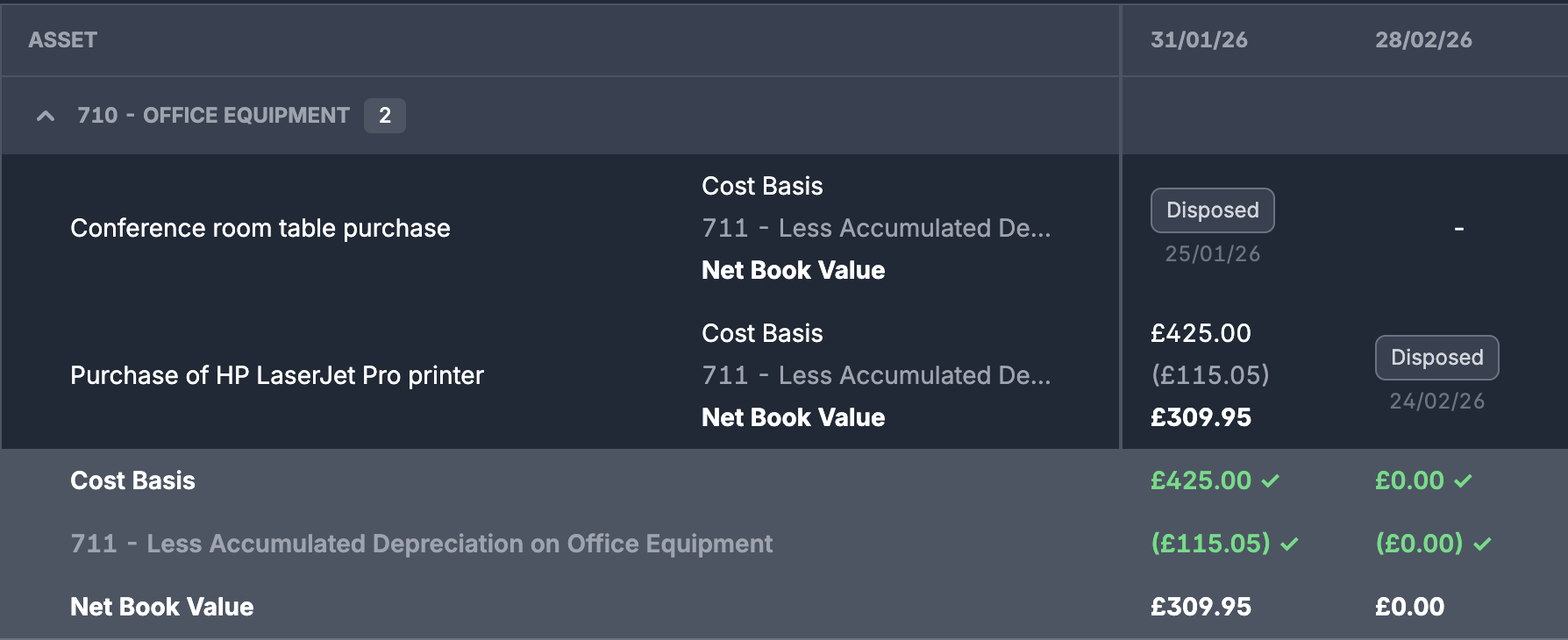
You will then be able to see disposals on the tracker:
Multi-line Fixed Assets
Briefcase will not group fixed asset line items together even if they have the same account and VAT rate so that each fixed asset can be capitalised independently, and a depreciation schedule can be created for each fixed asset.