How can I bulk upload assets to Briefcase?
Last updated: June 25, 2026
This guide covers how you can bulk import assets via a CSV into Briefcase in order to take advantage of automated depreciation schedules.
How it works
In order to bulk import assets into Briefcase, you need to use a CSV file formatted in the correct way.
Formatting the CSV
The CSV must contain the following headers:
description: a description of the asset (required)
costBasis: purchase cost of the asset
acquisitionDate: date of acquisition of the asset in the format YYYY-MM-DD
releaseFromDate: date in which Briefcase starts posting depreciation. If blank this will be defaulted to the 1st of the month of the acquisition date. If accumulatedDepreciationToDate is set, the releaseFromDate must also be set.
usefulLifeMonths: the remaining number of months to depreciate the asset for
residualValue: the value of the asset at the end of its useful life
supplierName: name of the supplier
assetAccountCode: code for the fixed asset used to capitalise the asset in your chart of accounts
depreciationExpenseAccountCode: code for the depreciation expense account in your chart of accounts
accumulatedDepreciationAccountCode: code for the accumulated depreciation (contra-asset) account in your chart of accounts
accumulatedDepreciationToDate: total accumulated depreciation of the asset
depreciationMethod: how the asset should be depreciated, either STRAIGHT_LINE or REDUCING_BALANCE (defaults to straight line if left blank)
alreadyDepreciated: enter "true" or 1 if the entire schedule has already been depreciated and you are adding it to Briefcase for tracking only purposes.
If this column is true, Briefcase will not post any depreciation for this fixed asset, it will simply track it. Note that if this column is true, the releaseFromDate and accumulatedDepreciationToDate cannot be defined.
Note that only the description is required for each row in the CSV. If any of the data is not present, you will be able to add it later in the review step.
You can download a template of the CSV by following these steps:
Navigate to the Fixed Assets Inbox from the sidebar
Click the dropdown next to the Add asset button and then click Bulk import

This will open a modal, from here you can click Download template to download
Uploading the CSV
Drag and drop or click to upload the CSV in the modal
We will validate the CSV and surface any errors we find. Once your CSV is valid, you will see a preview of the assets:
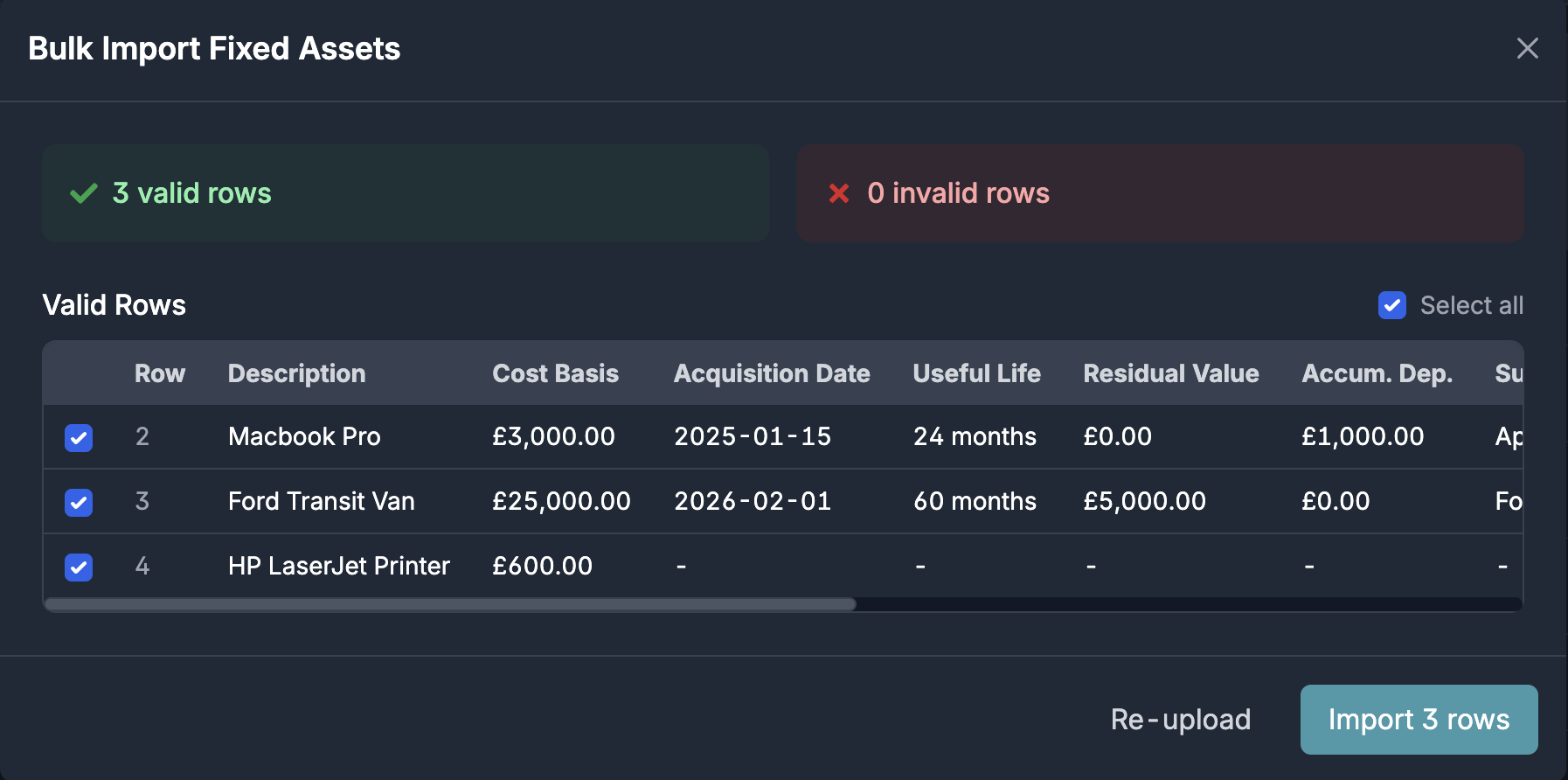
Select/unselect the rows you wish to be processed and click Import x rows
In the background we will start to process each row and create a depreciation schedule in review
You will then be able to review and publish the schedule as normal