How can I bulk upload deferred income to Briefcase?
Last updated: June 9, 2026
This guide covers how you can bulk import deferred income via a CSV into Briefcase in order to take advantage of automated deferred income schedules and track all deferred income in one place.
We recommend bulk importing existing deferred income when you connect a client for the first time.
How it works
In order to bulk import deferred income into Briefcase, you need to use a CSV file formatted in the correct way.
Formatting the CSV
The CSV must contain the following headers:
description: description of the income being deferred (required)
deferredAmount: total deferred amount of the income
frequency: either RECURRING or ONE_OFF
use RECURRING if the income is recognised over several months (eg. an annual contract)
use ONE_OFF if the income is recognised at one point in the future (eg. a customer prepays for a service to be carried out next month)
startDate: date that the income was received in the format YYYY-MM-DD
endDate: date that the income becomes fully recognised in the format YYYY-MM-DD
releaseFromDate: date in which Briefcase takes over posting the schedule in the format YYYY-MM-DD. This must be between the startDate and endDate.
This is only necessary when uploading deferred income that has already been partially recognised. For example, if you had an annual contract from 1st Jan - 31st Dec that had already been recognised up tp 31st May, adding a releaseFromDate of 1st June would mean that Briefcase would only start posting from June onwards. This field links to the openingBalance (see below).
openingBalance: the current balance of the income in the deferred income liability account. This cannot exceed the deferredAmount.
This is only necessary when uploading a prepayment that has been partially recognised. releaseFromDate required if openingBalance is present.
If the deferred income has not been recognised at all, leave this field blank
customerName: name of the customer of this deferred income
liabilityAccountCode: code for the deferred income liability account in your chart of accounts
incomeAccountCode: code for the income account in your chart of accounts
Note that only the description is required for each row of the CSV. If any of the other data is not present, you will be able to add it later in the review step.
You can download a template of the CSV by following these steps:
Navigate to the Deferred Income Inbox from the sidebar
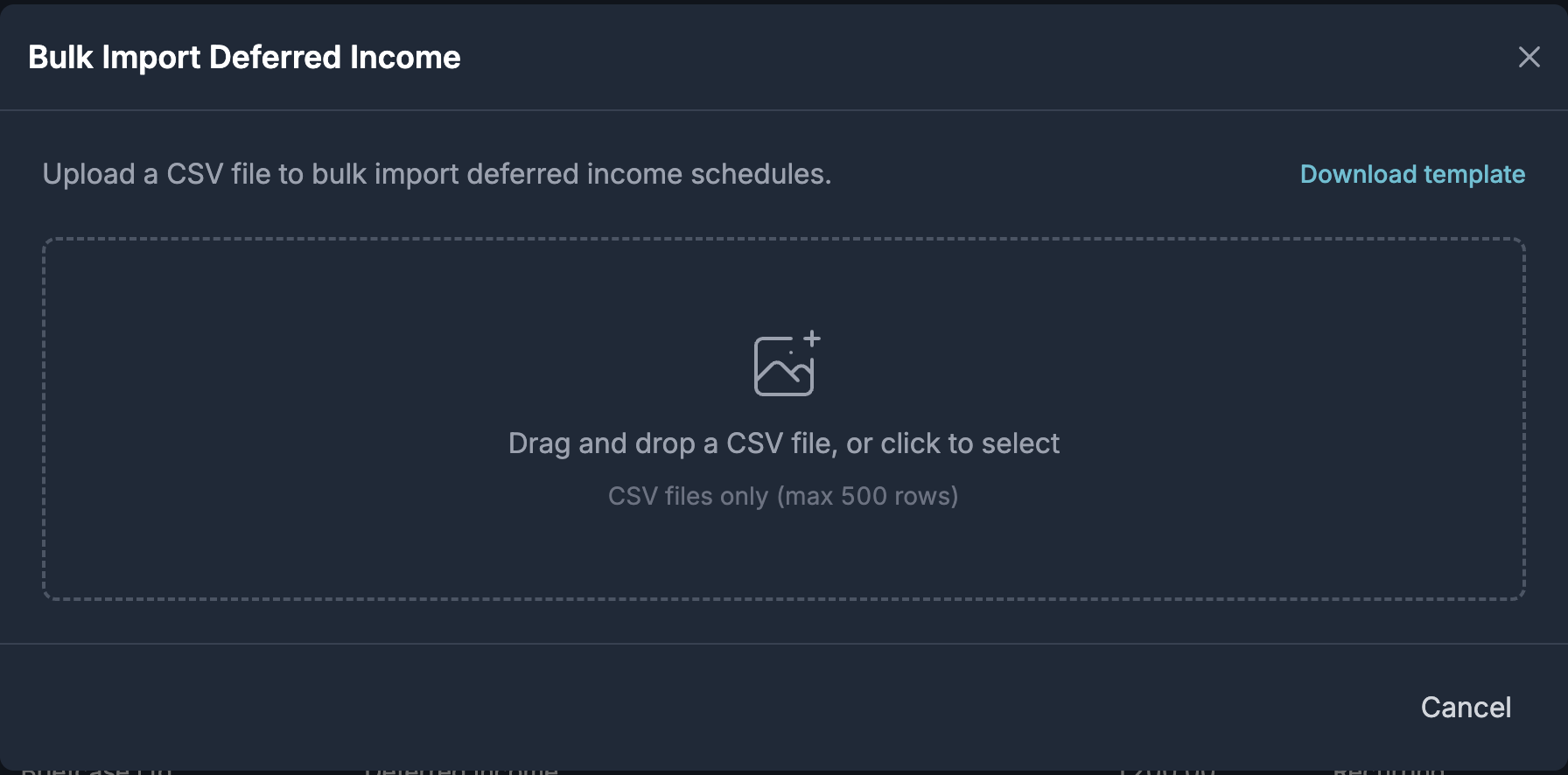
Click the dropdown next to the Add deferred income button and then click Bulk import

This will open a modal, from here you can click Download template to download a CSV with the correct formatted columns
Uploading the CSV
Once you have created the CSV of your existing deferred income, it's time to upload it.
Drag and drop or click to upload the CSV in the modal
We will validate your CSV and surface any errors we find. Once your CSV is valid, you will see a preview of the deferred income that will be imported:
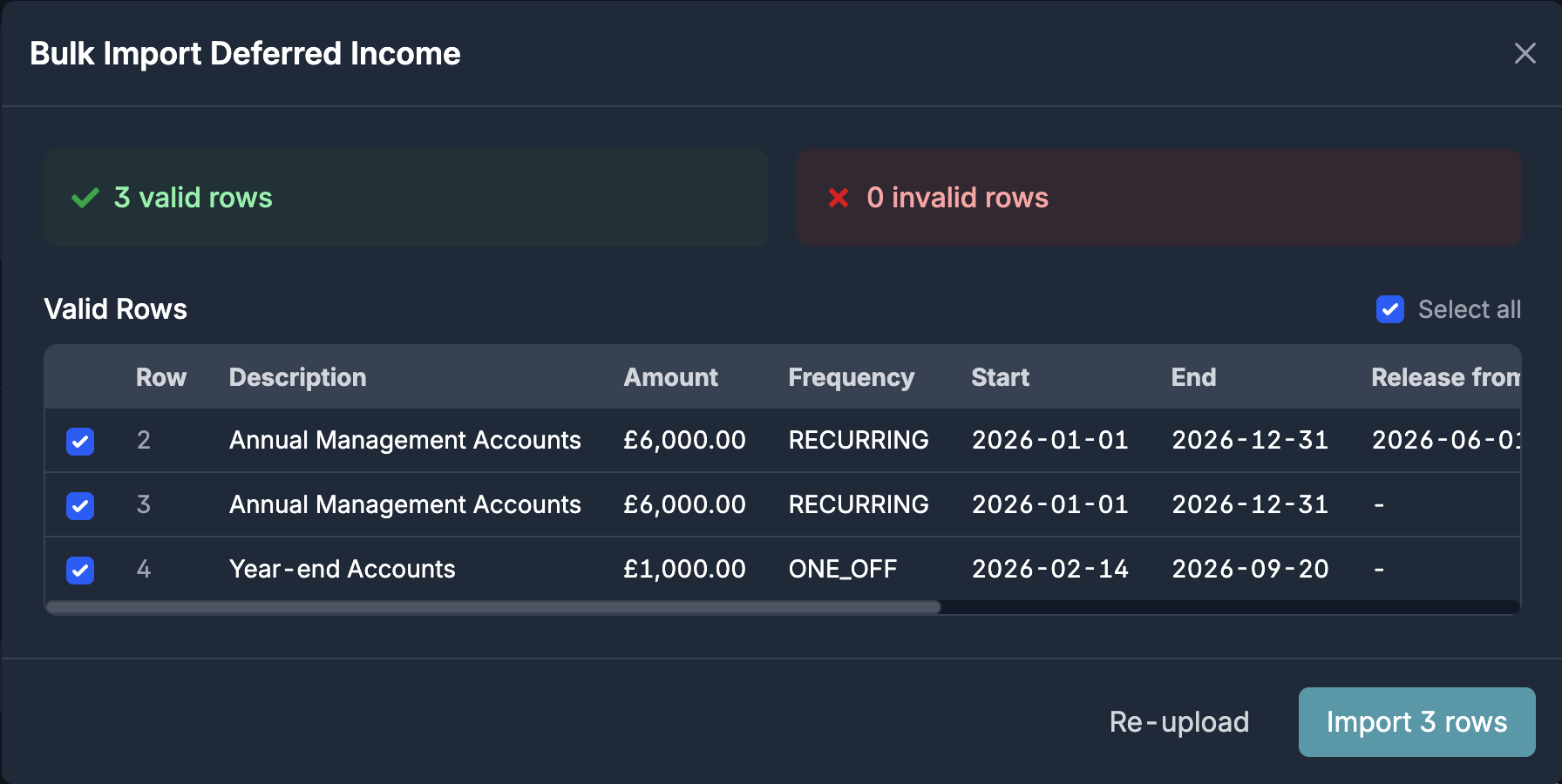
Select/unselect the rows you wish to be processed and click Import x rows
In the background, we will start to process each row and create deferred income in review
You will then be able to review and publish the deferred income schedule as normal
Reviewing & publishing deferred income
Any deferred income uploaded via CSV will appear in the Awaiting Review section on the Deferred Income Inbox page:
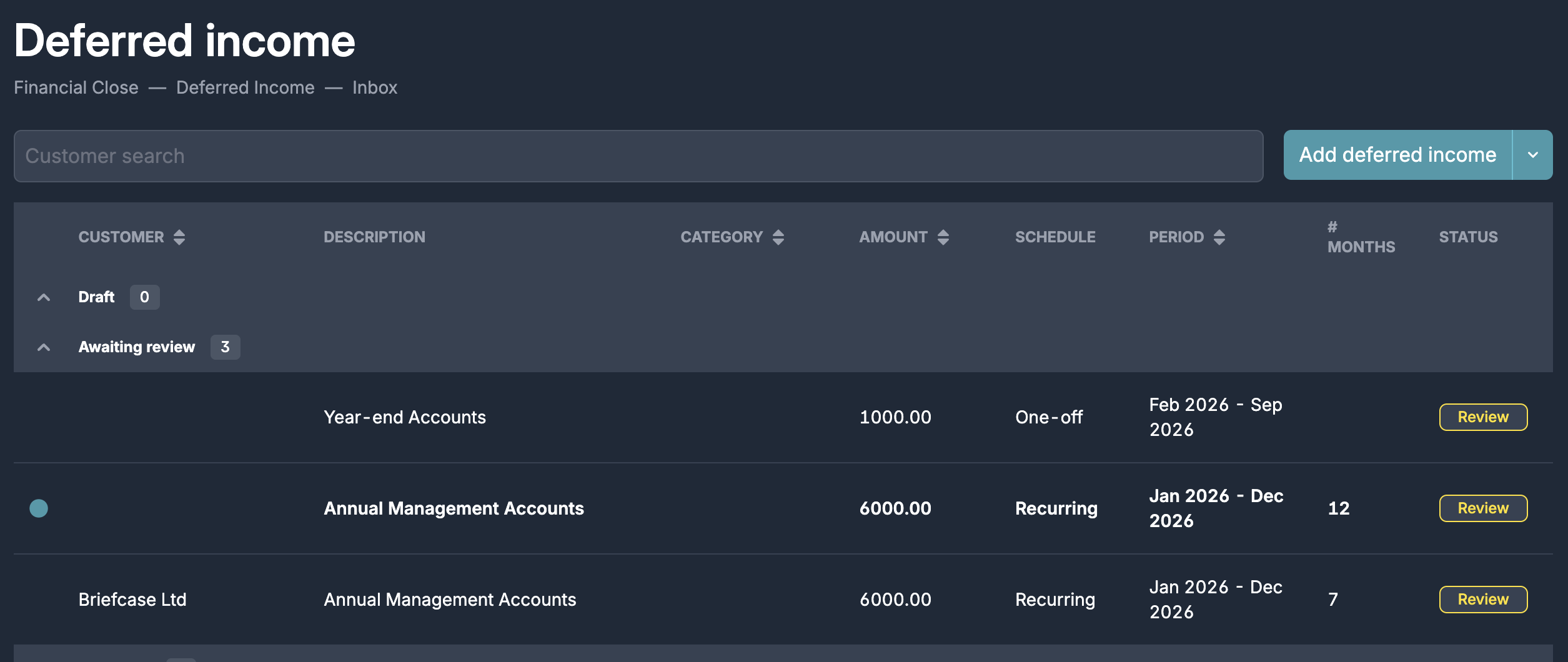
Click into any of the deferred income to see the deferred income details page:
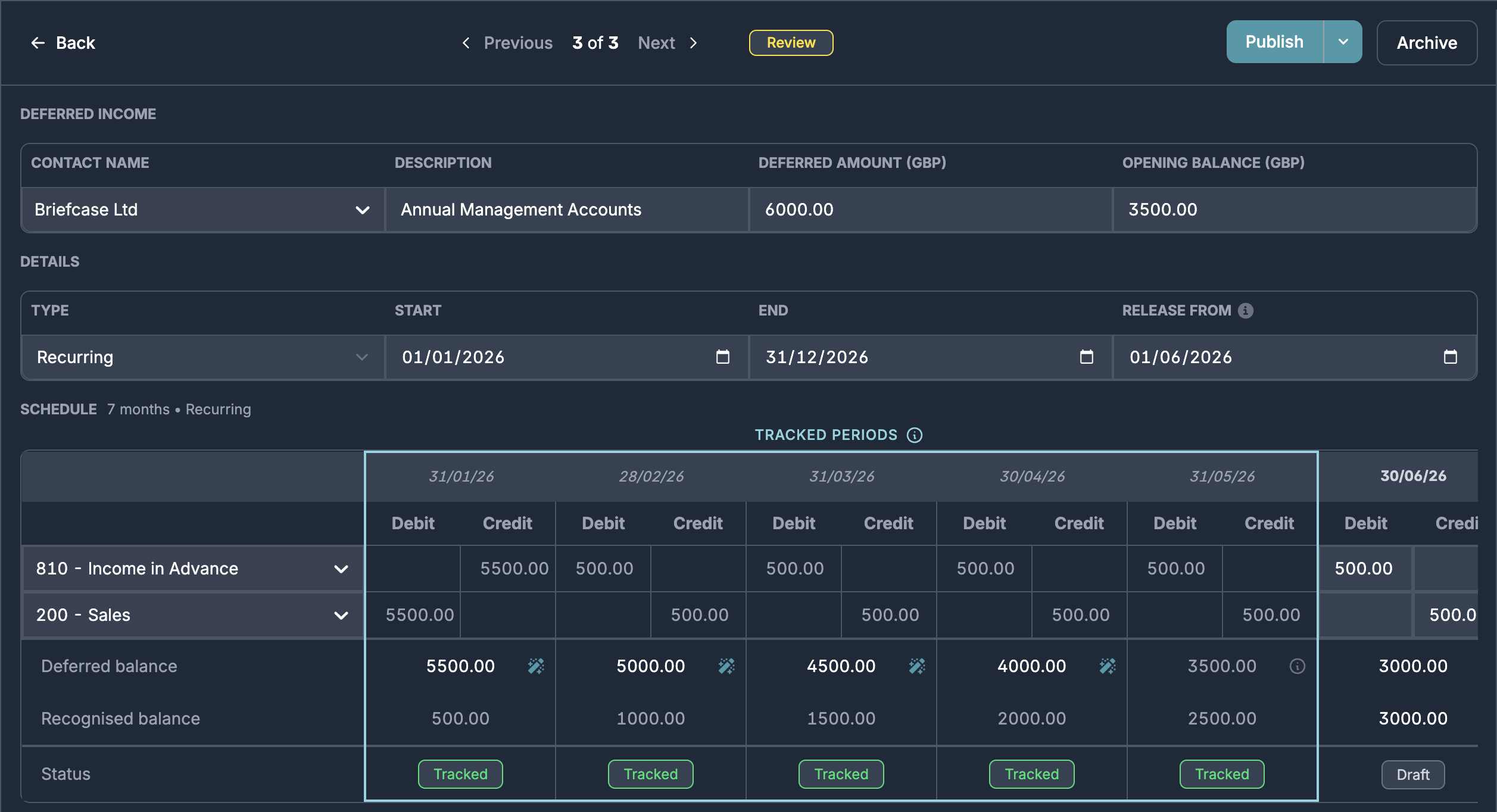
From here, you can click Publish to start posting the deferred income schedule.
If the deferred income has an opening balance and release from date, you will see a tracked periods section in the schedule. This section estimates the deferred balance in the already-posted periods of the schedule.
This data is used in the tracker and working papers to reconcile the deferred income accounts in these periods.
We recommend double-checking the deferred balance row for each of these tracked periods. If a balance is wrong, you can update it so that the correct balance is reflected for reconciliation purposes.