How does Briefcase Working Papers work?
Last updated: June 9, 2026
This guide covers how Briefcase's Working Papers solution helps you automate parts of month-end, quarter-end or year-end closes for your clients. Briefcase Working Papers works best when you already use Briefcase's other financial close modules: prepayments, deferred income, fixed assets and accruals.
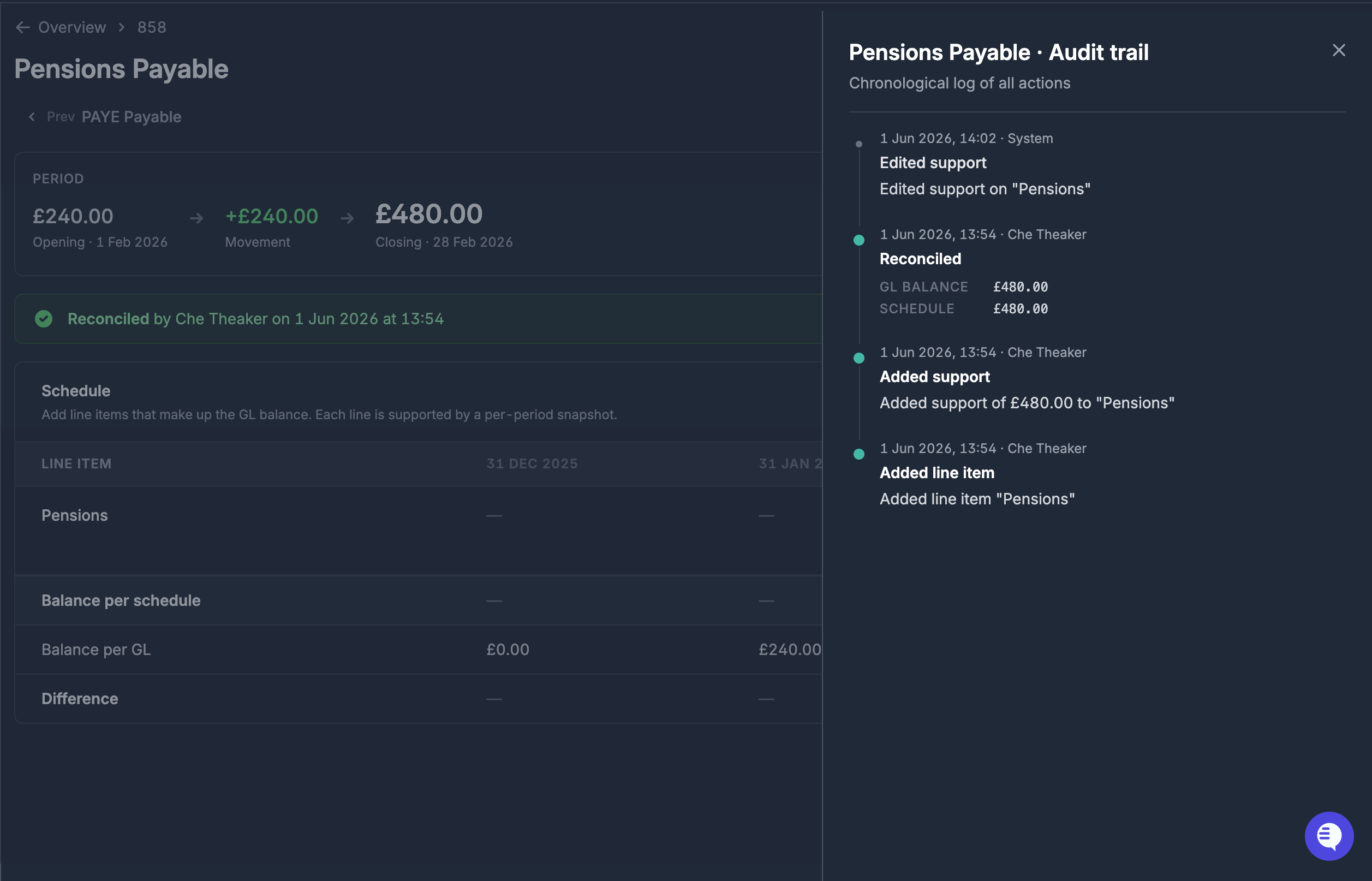
Built-in auditability: Every action performed is logged automatically so you know who changed what and when.
Live Xero data sync: Trial balances flow straight from the ledger. No more stale data being exported into Excel. Movements to the ledger are automatically synced to our Working Papers module.
Evidence as a first-class citizen: Statements, invoices, and confirmations can be attached directly to the balances they support.
Prior period data at your fingertips: Brought-forward balances, prior working paper snapshots and the documents that supported them are just one click away. Exactly where you need them to reconcile the account.
Working Papers is live for Xero - coming soon for QuickBooks and Briefcase One
Setting up a working paper
In order to set up a working paper, you'll first need to ensure that your team have the relevant permissions. There are 2 new permissions that you'll find:
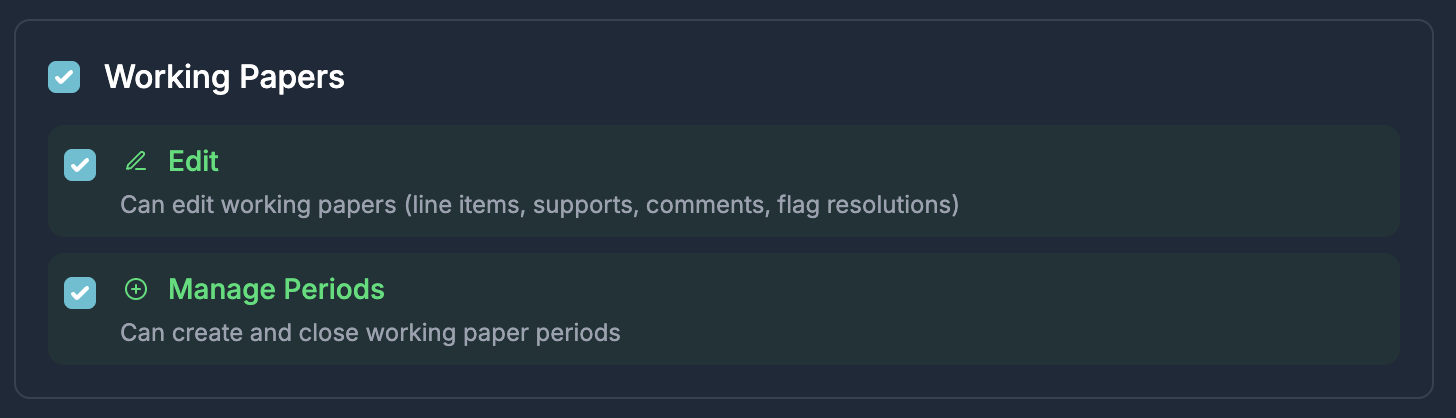
Edit: This allows a user to perform any actions within the working paper to prepare it to be closed. This is the traditional "preparer" role
Manage Periods: This allows a user to create a new working paper and close it once all accounts are reconciled. This is the traditional "approver" role
An admin can manage these permissions for users by going to the team settings page.
Once you have set up permissions, you are ready to create your first working paper. To do this:
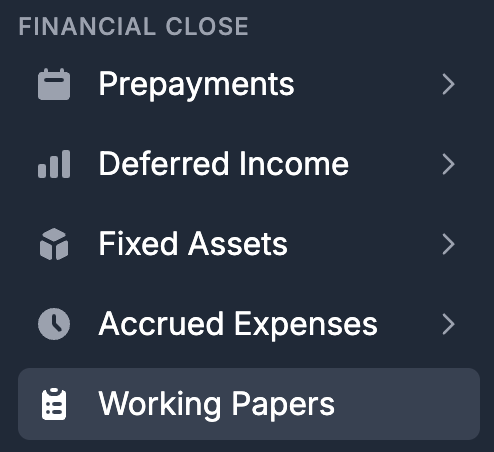
Click the "Working Papers" tab under "Financial Close" in the sidebar to open the Working Papers page:
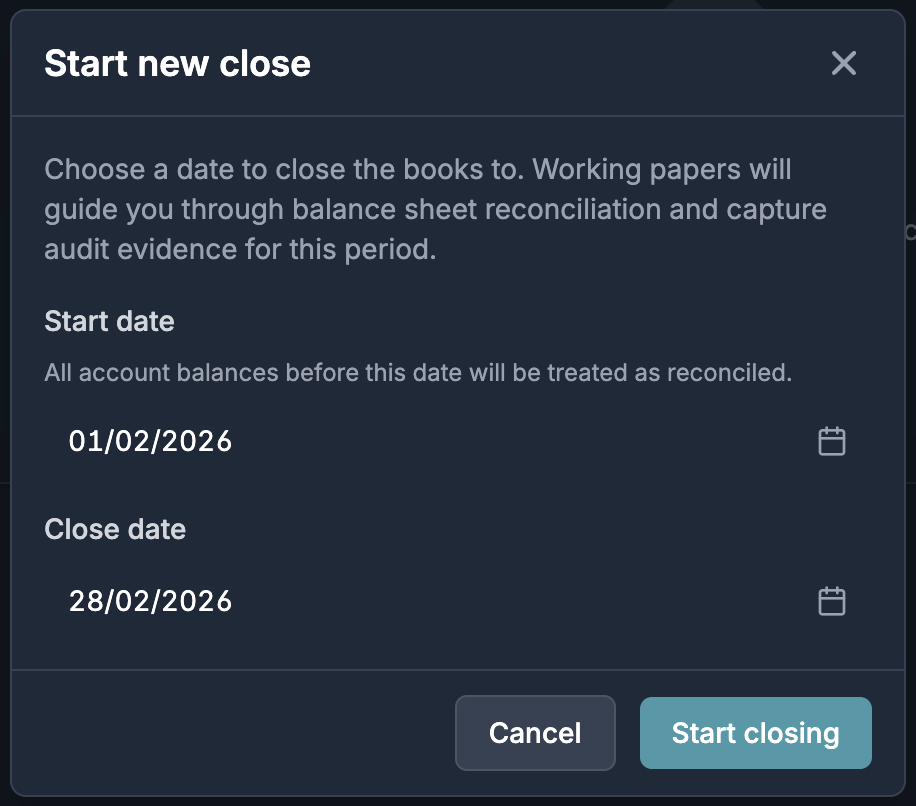
Click on "Start first close". You will then be prompted to enter a start and end date for your first close. We recommend selecting a monthly or quarterly interval for this.
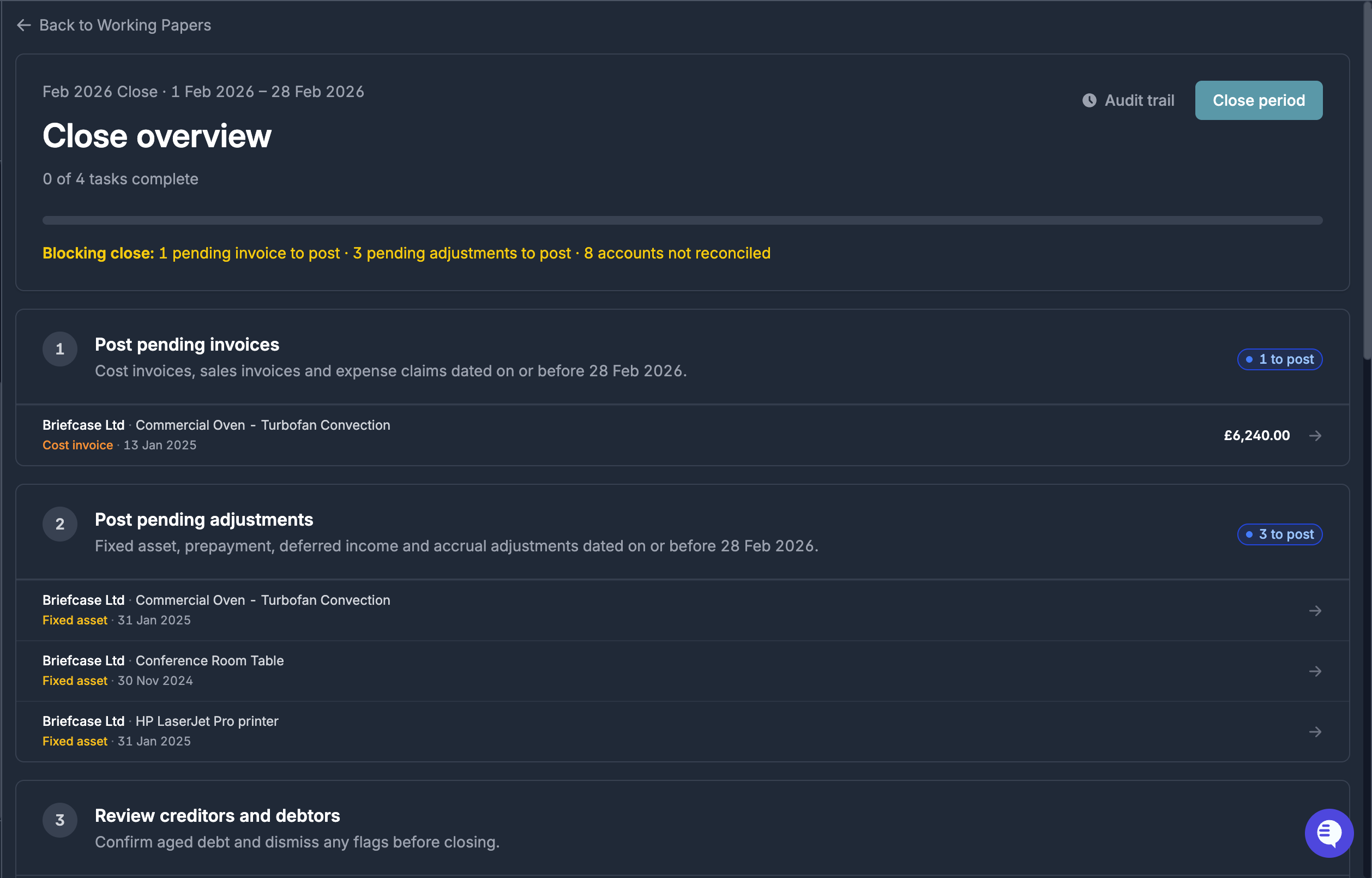
You have now successfully set up your first working paper:
Walking through the working paper
There are 5 defined steps in the working paper workflow in order to prepare the accounts to be closed:
Post pending invoices
Post pending adjustments
Review creditors and debtors
Review fixed assets
Reconcile balance sheet accounts
1. Post pending invoices
In order to ensure that there is no missing data for the working paper period, Briefcase automatically surfaces any cost invoices, sales invoices or expense claims which are dated before the working paper close date and have not yet been posted. You will see these in section 1:

In order to handle these, you can simply click on the invoice and post it to your ledger from Briefcase. You can also archive the invoice if it does not need to be posted.
Once all pending invoices have been posted, this section will be marked as complete:

Note that only pending invoices that have already been uploaded to Briefcase will be surfaced here. Ensure that all invoices have been uploaded to Briefcase before completing this step.
2. Post pending adjustments
If there are any fixed assets, prepayments, deferred income or accruals that Briefcase has detected but haven't been posted yet, they will appear in this 2nd section:
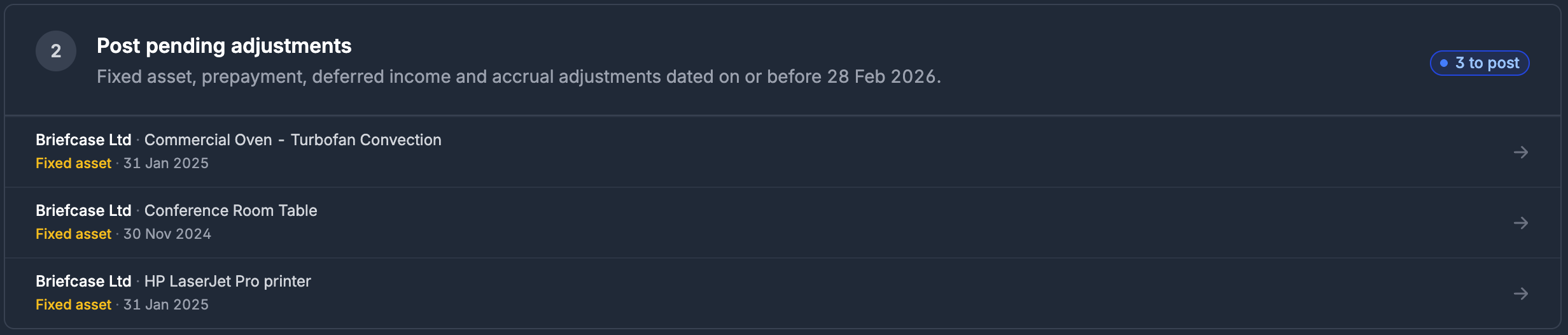
As with posting the pending adjustments, you can click on the adjustment and post it from Briefcase. We recommend using Briefcase's financial close modules as the working papers module is optimised to use these. If you are not using Briefcase's financial close modules, you can archive these adjustments to clear this section.
Once all pending adjustments have been posted, this section will be marked as complete:

3. Review creditors and debtors
The Accounts Payable (AP) and Accounts Receivable (AR) balance sheet accounts have a unique type of reconciliation.
Click one of the tabs in section 3 to start the reconciliation:

This will take you to the AP or AR account details page. Here you will see an aged breakdown of outstanding invoices:
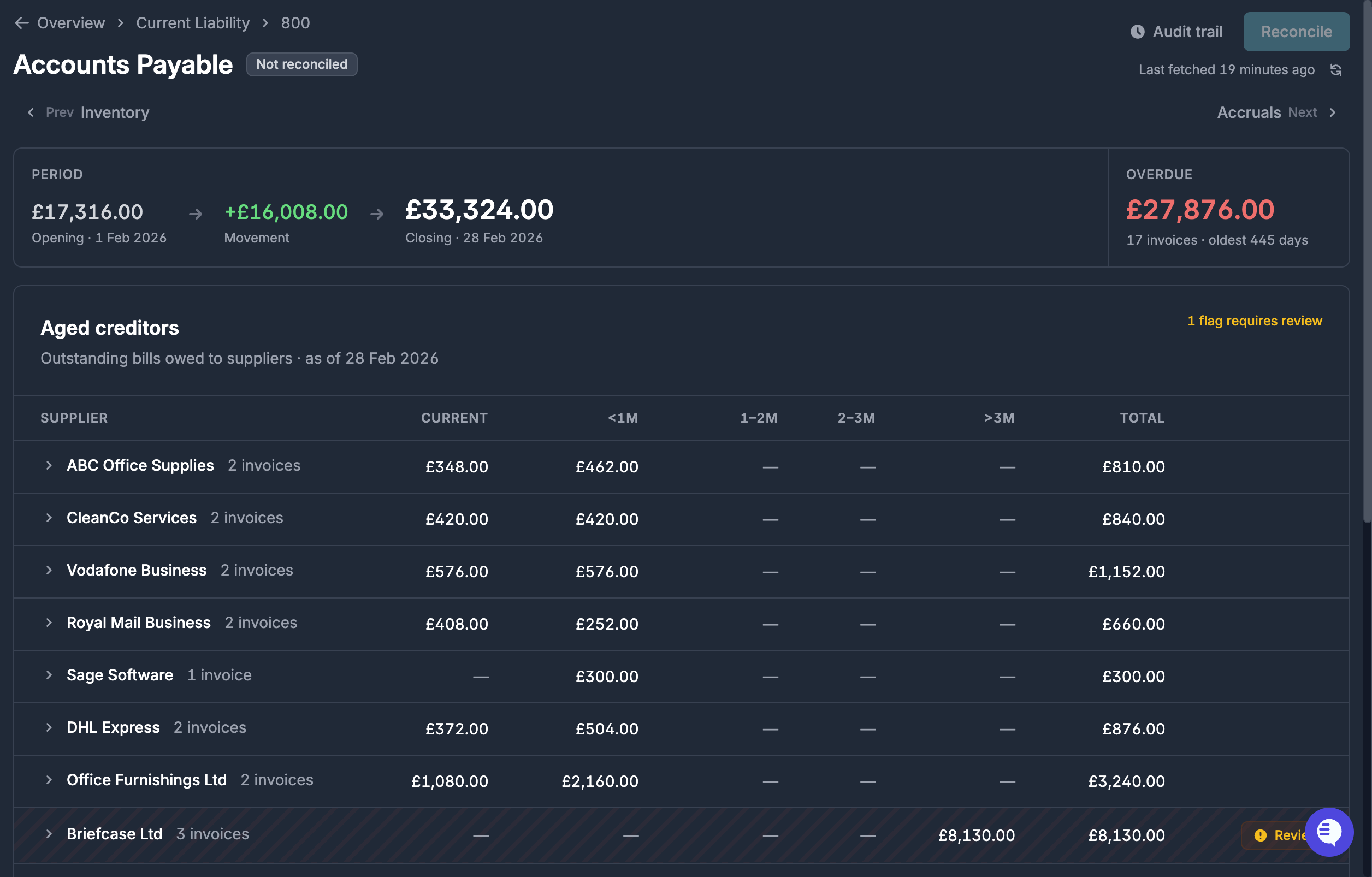
You can click on the dropdown of any contact to see a list of outstanding invoices from that contact including the due date and how overdue it is:

Briefcase will automatically flag any contacts for the following reasons:
The contact has an invoice(s) which is more than 3 months overdue
The contact has a negative balance

You can click the "Review" button to bring up a more detailed view of the flag. This will show you the specific invoices which have been flagged and the reason why. At this point you have 2 options:
Organise for the invoice(s) to be paid (either by the customer to the client for AR or by the client to the supplier for AP): once the invoice is paid, the flag will automatically disappear when reloading the page
Resolve the flag with a justification: Add a note explaining why this invoice isn't paid with up to 5 attachments as evidence:
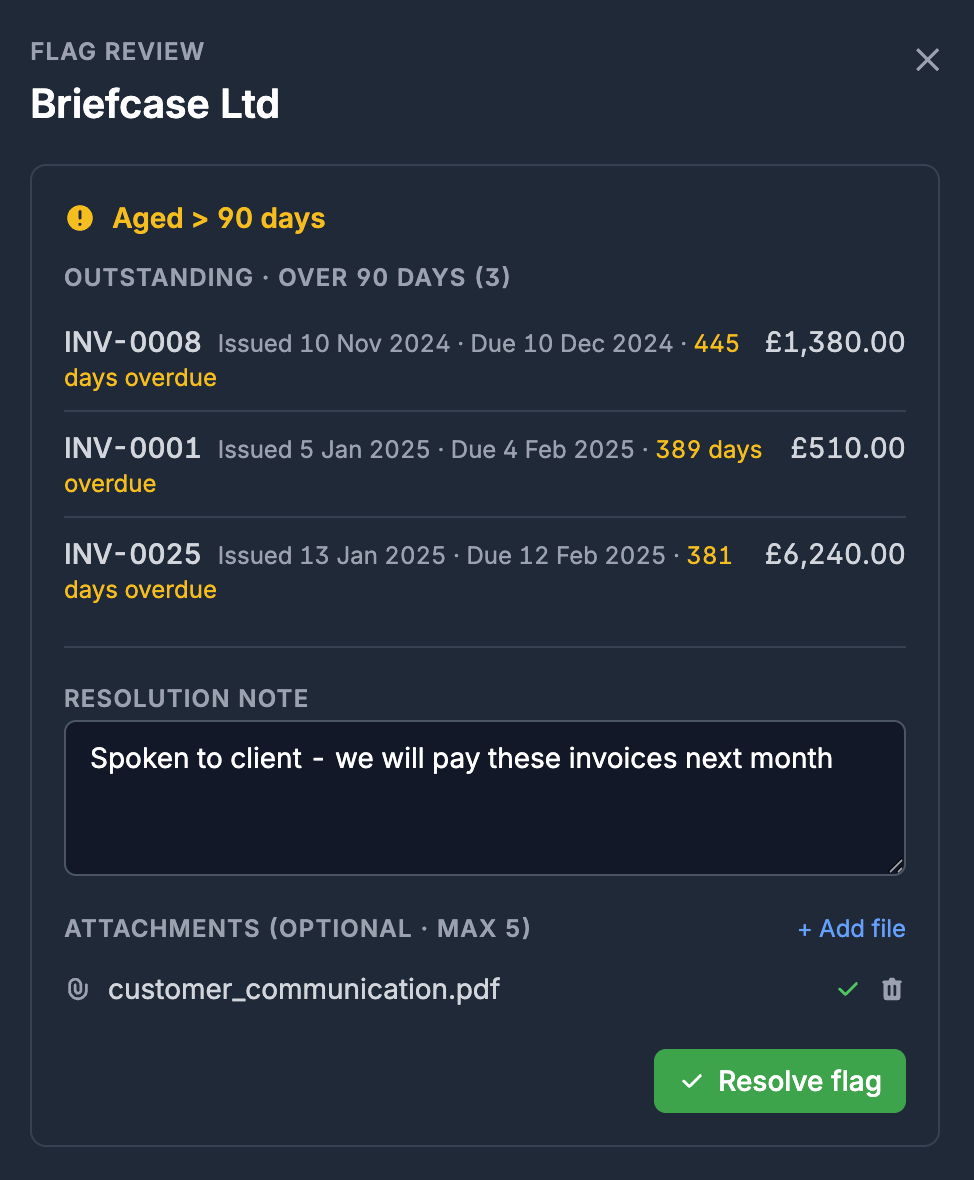
In the case that you resolve the flag, it will now show as resolved in the table. You can click on on "Resolved" to view the resolution justification and attachments:

Once all flags have been resolved, you will be able to mark this account as reconciled by clicking "Reconcile" in the top right:
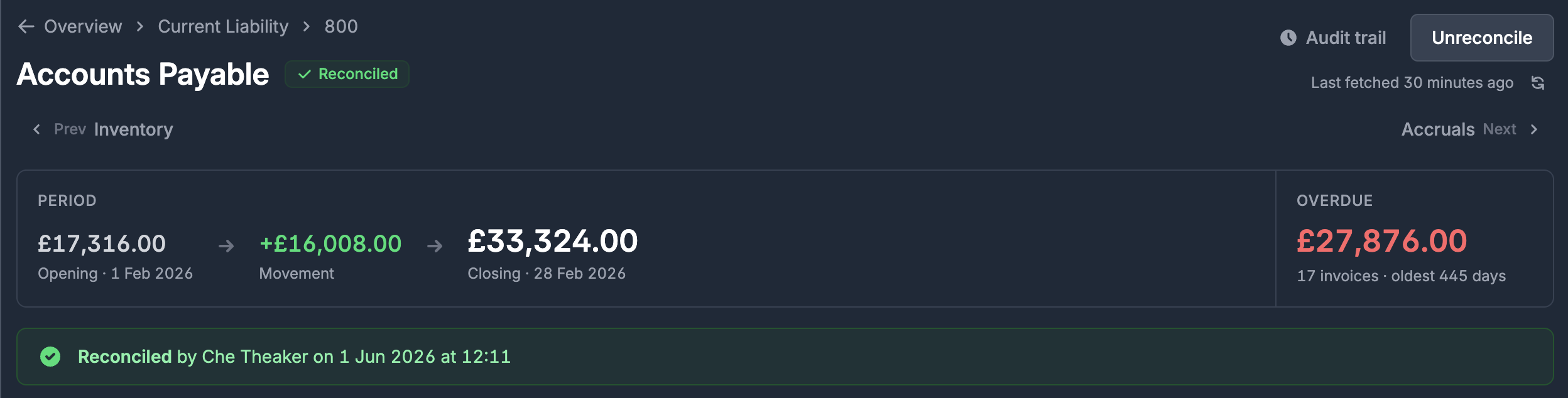
Once you have reconciled both Accounts Payable (AP) and Accounts Receivable (AR), this section will be marked as completed:

4. Review fixed asset register
This section uses Briefcase's existing Fixed Assets module to automatically reconcile all fixed asset balance sheet accounts.
If you are not already using Briefcase's built-in Fixed Asset register, we recommend doing so. You can learn more about this in this support article.
The top section of the fixed assets section shows a breakdown of the entire fixed asset register for the working paper period:

Here you can see the opening balance of the cost basis, accumulated depreciation and net book value. You can also see the movement within the working paper period to see how much depreciation has been posted this period for example. In the bottom right you will also see the number of assets registered as well as the change in assets over the working paper period.
Below you will see the fixed assets grouped by asset account:

Each line shows the number of assets in the group and the total value of the assets in the group. You can click to expand any of the groups to see a breakdown of the assets within the group:
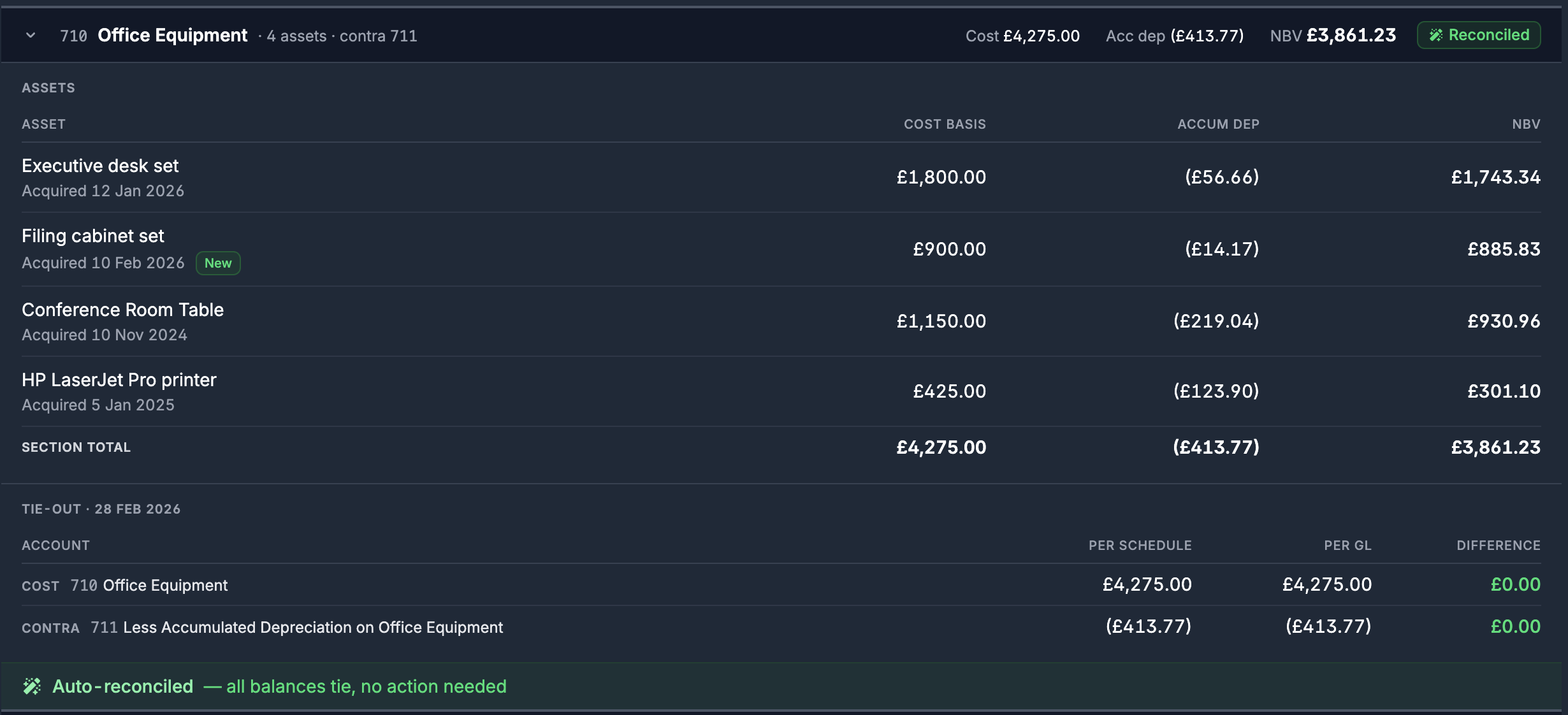
Briefcase will automatically compare the account per Xero against the computed balance based on the assets and their depreciation. This will happen for the cost account (for example 710 - Office Equipment) and for the contra-asset account (for example 711 - Less Accumulated Depreciation on Office Equipment). If the account balances match, the account will be auto-reconciled for you. If there is a difference, this will be shown and you have 2 options:
Update the fixed asset register: In the case that an asset is missing from the register for example, you would want to add this asset to the register.
Manually reconcile with a difference: You will have the option for reconcile the account with a difference, justifying the reason for the difference (eg "rounding error") and attaching any relevant documents to support this.
Once all fixed asset groups are reconciled, the fixed asset section will be marked as complete:

5. Balance sheet reconciliation
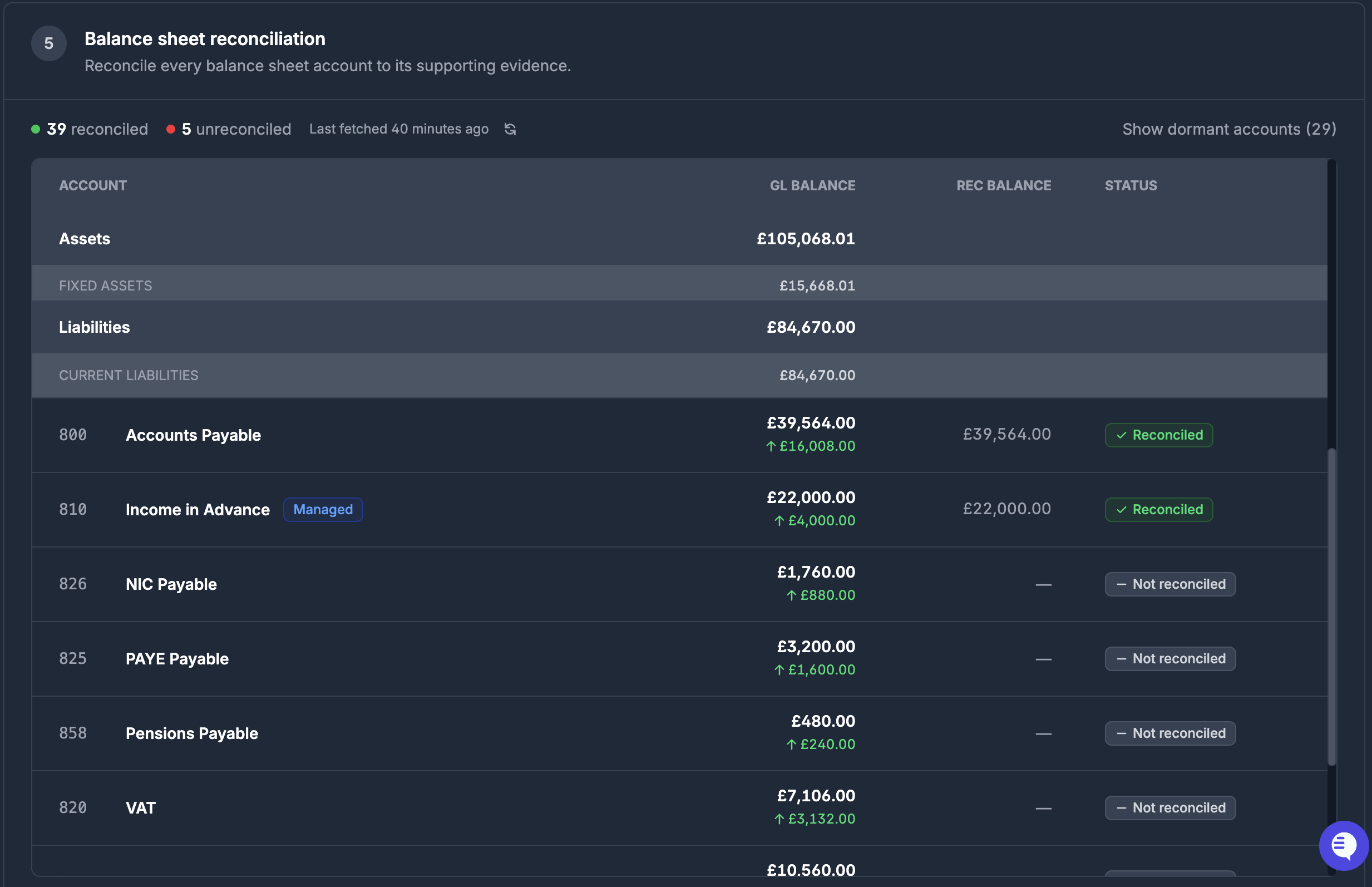
The final section involves reconciling the rest of the balance sheet accounts. At this point, you should see that some of the accounts are already reconciled due to being reconciled in the previous steps.
There are a range of accounts which are reconciled in different ways. In order to reconcile an account, you can click on the account from the balance sheet accounts table to see the account details page:
Reconciling an account
In order to reconcile an account, you will need to provide supporting evidence on the account's schedule which matches the account balance per the ledger. When initially opening the account details page, you will see this:
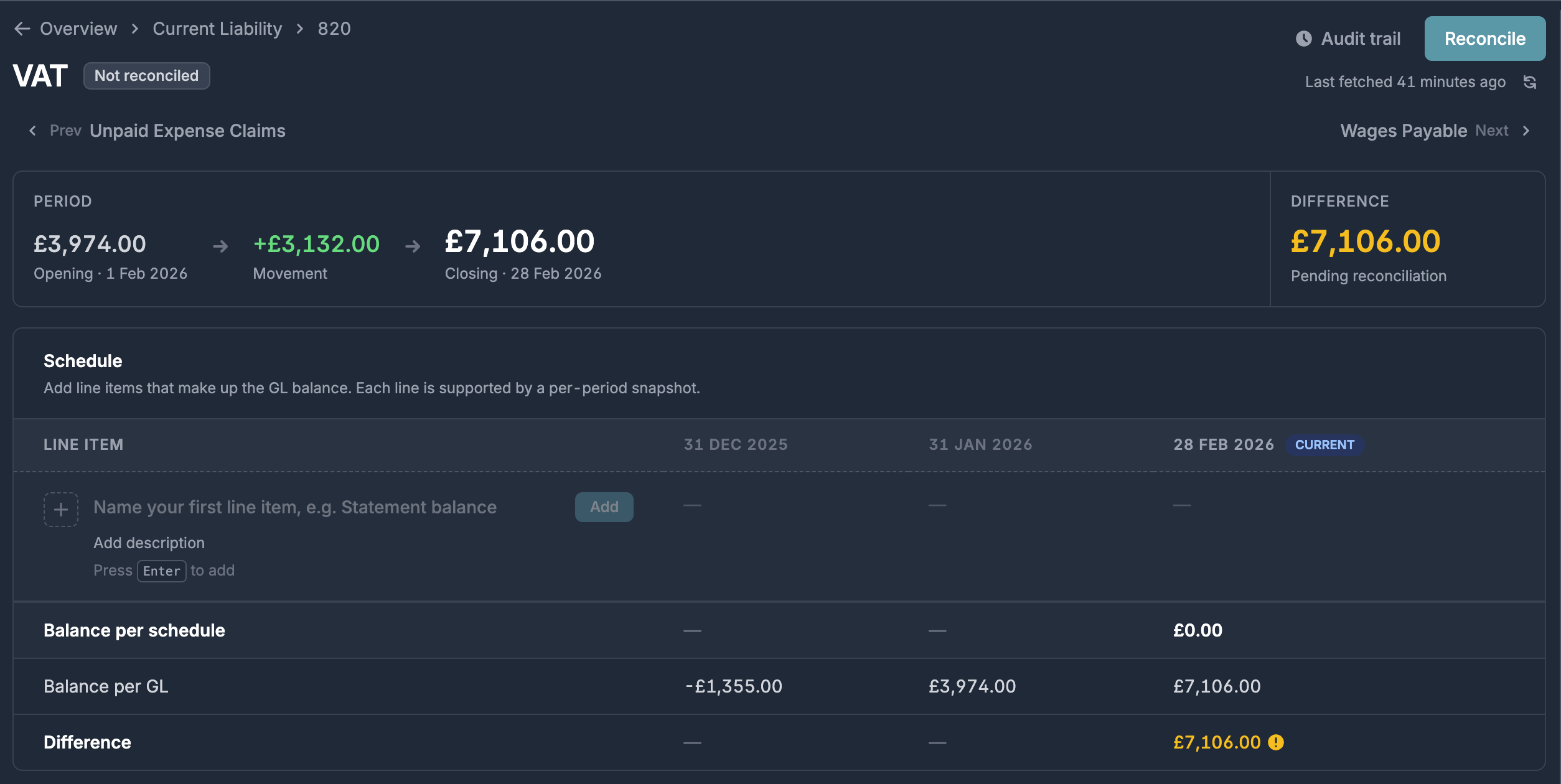
Add relevant line item(s): you can think of line items as entities which make up the balance of an account. For example in order to reconcile the VAT account, you might want to add 2 line items:
Input VAT: VAT reclaimable on purchases
Output VAT: VAT payable on sales
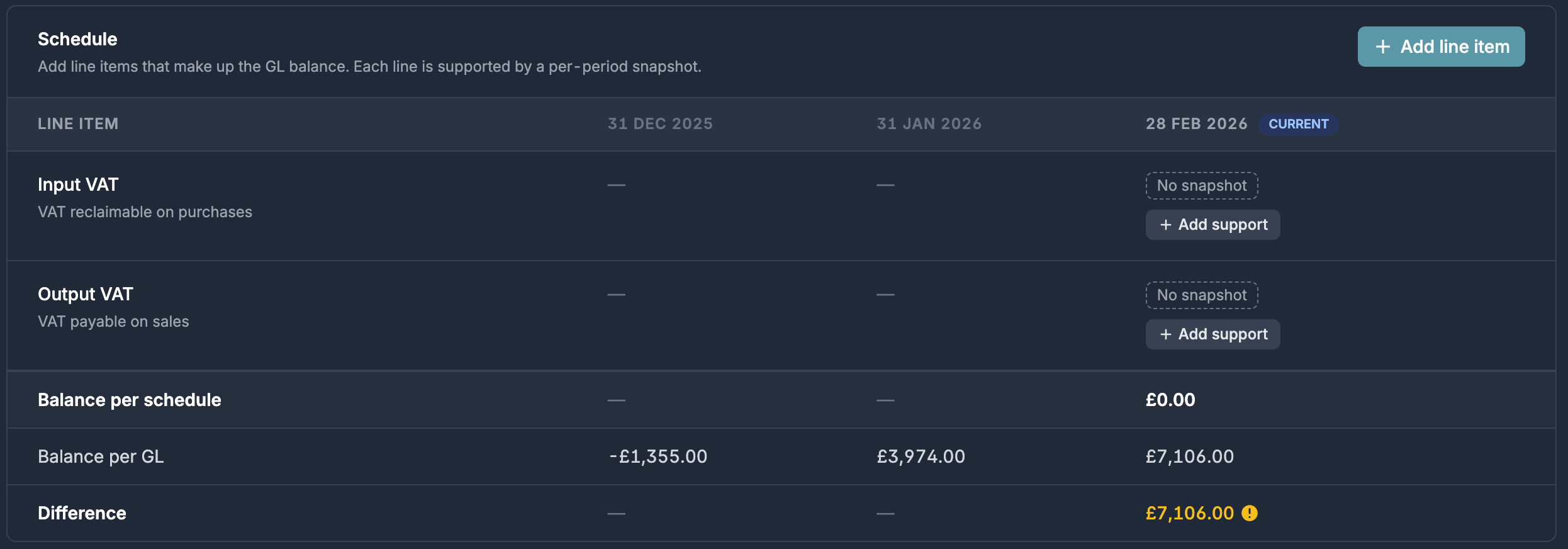
Line items persist across working paper periods, so once you create a line item, you will see this in the next working paper. This means that you will likely only need to create these line items for the initial working paper, and then they will be there for all future working papers.
Add support for line items: Once you have added the relevant line items, you now need to add support to them. This is done by clicking "Add support":
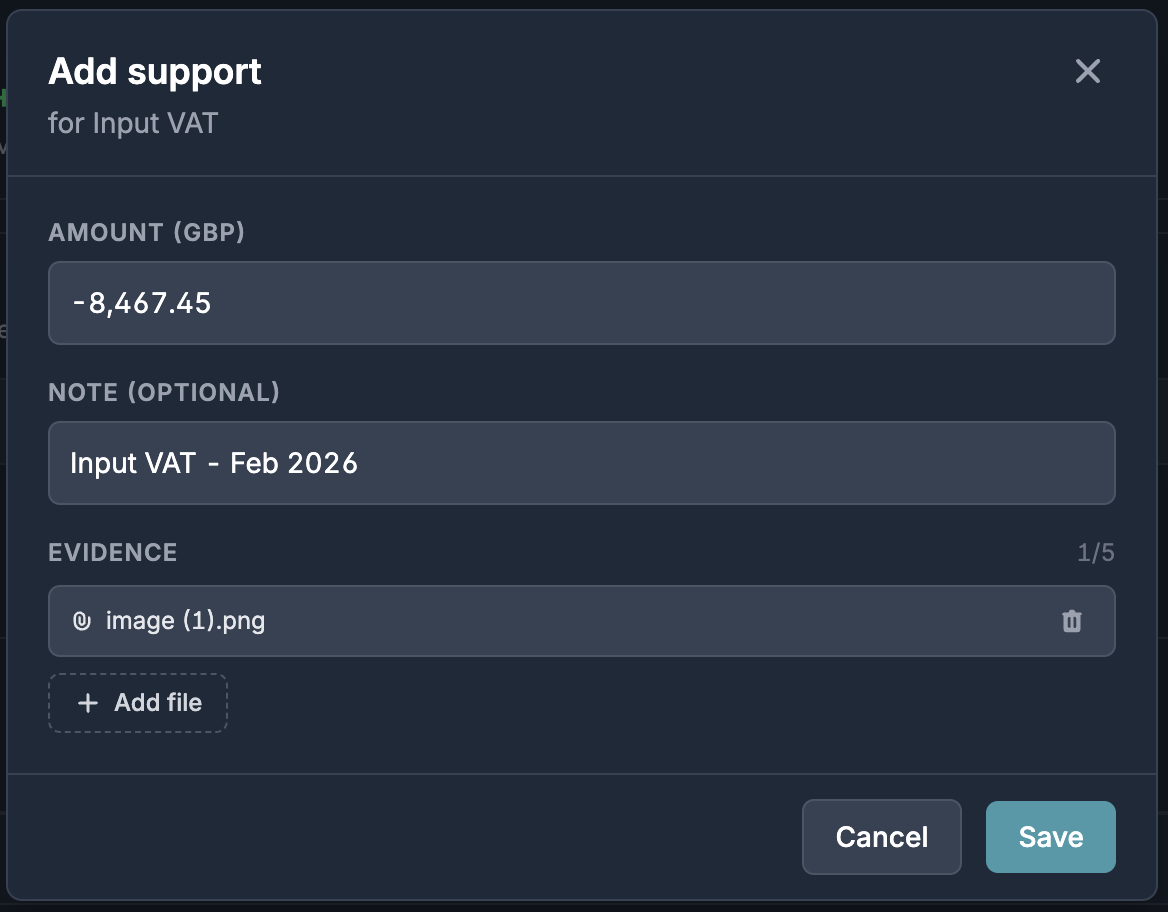
This will open a modal where you can input the amount you would like to support, and an optional note and attachments as evidence.
Reconcile the account: once support is added for each line item, you will be able to see the difference between the support you added and the GL balance:
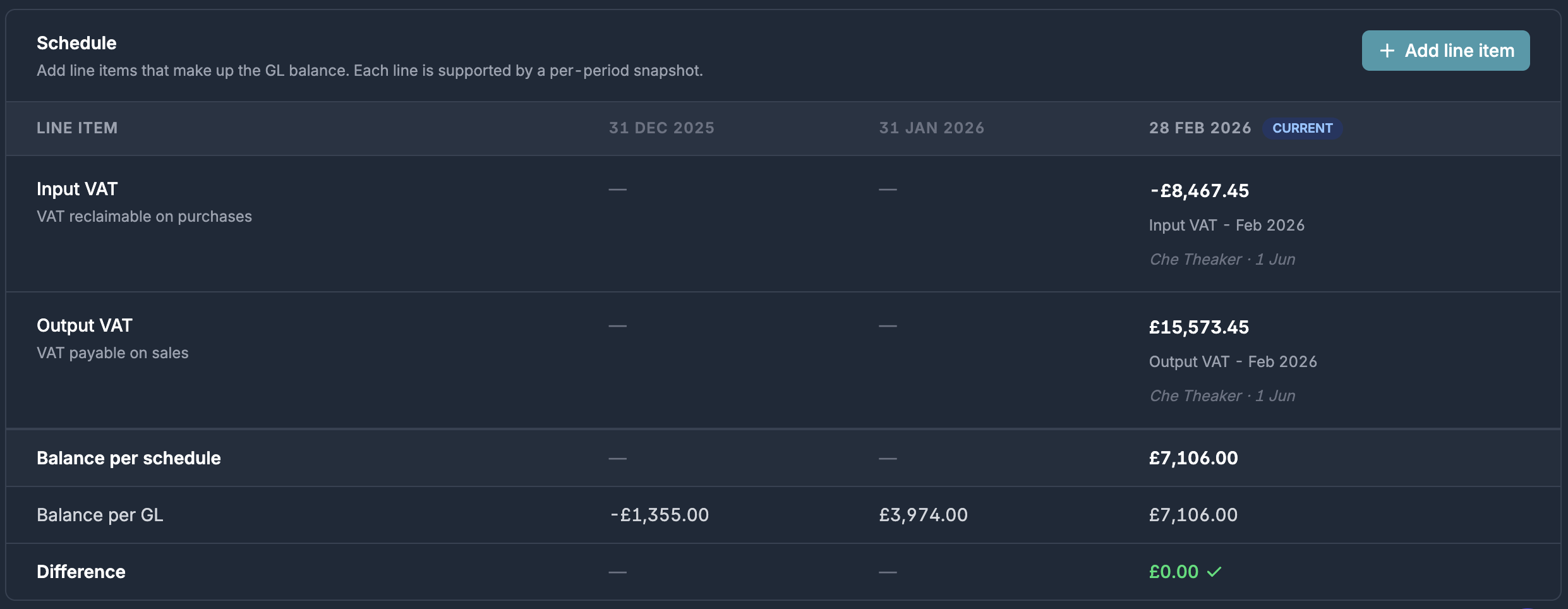
Click "Reconcile" in the top right to reconcile the account. If the difference is not exactly £0.00, a modal will appear when clicking "Reconcile" to ask for some additional information:
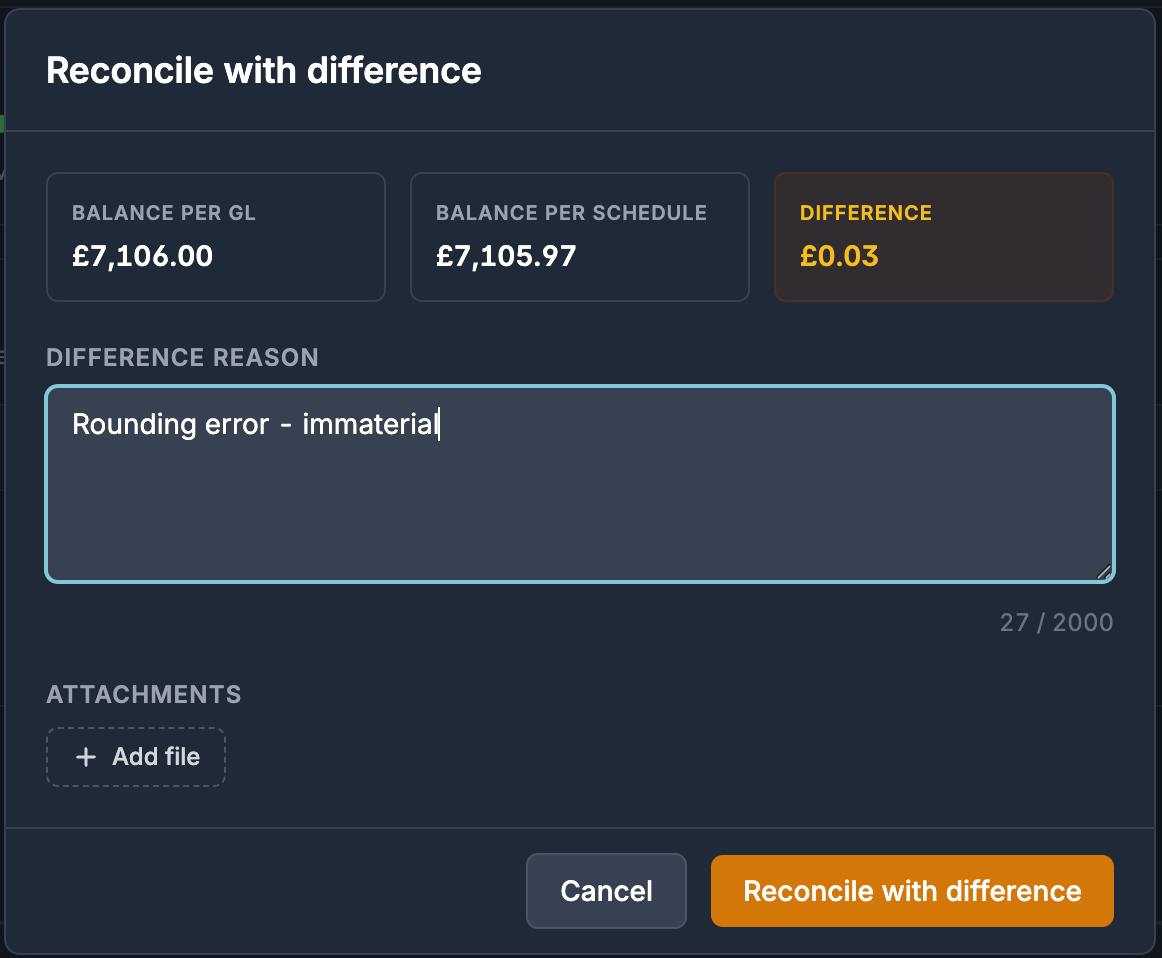
You are still able to reconcile an account with a difference however you need to provide a justification as to why the account is still able to the reconciled.
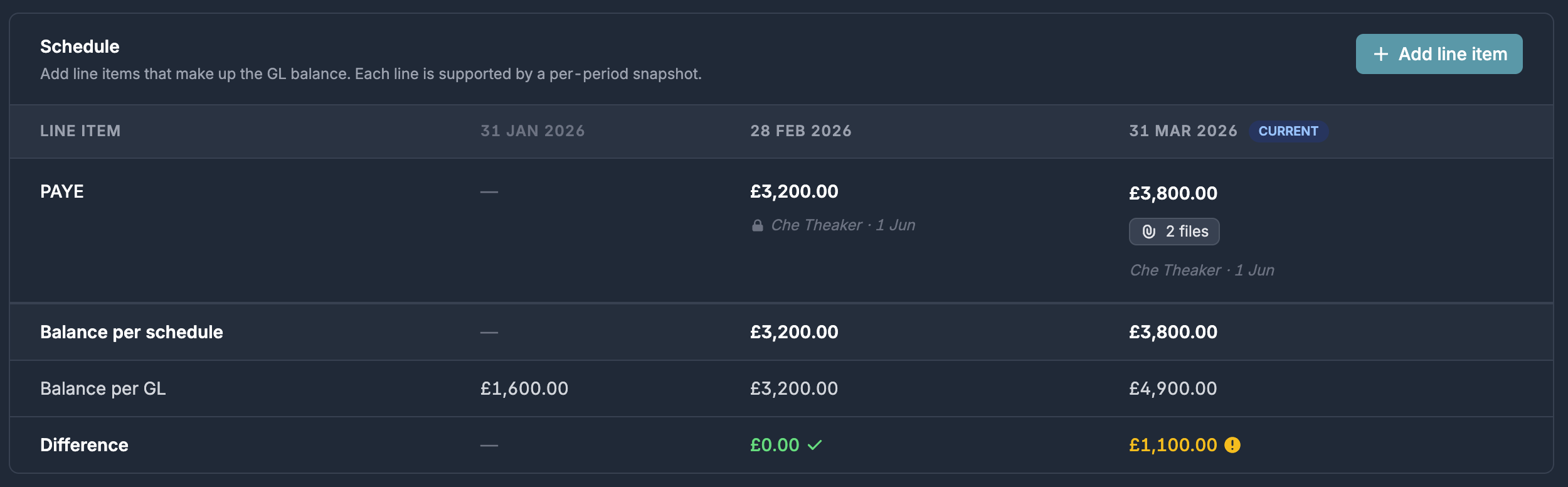
For the future working paper periods, you will then see the prior period supports shown in the schedule table:
Dormant Accounts
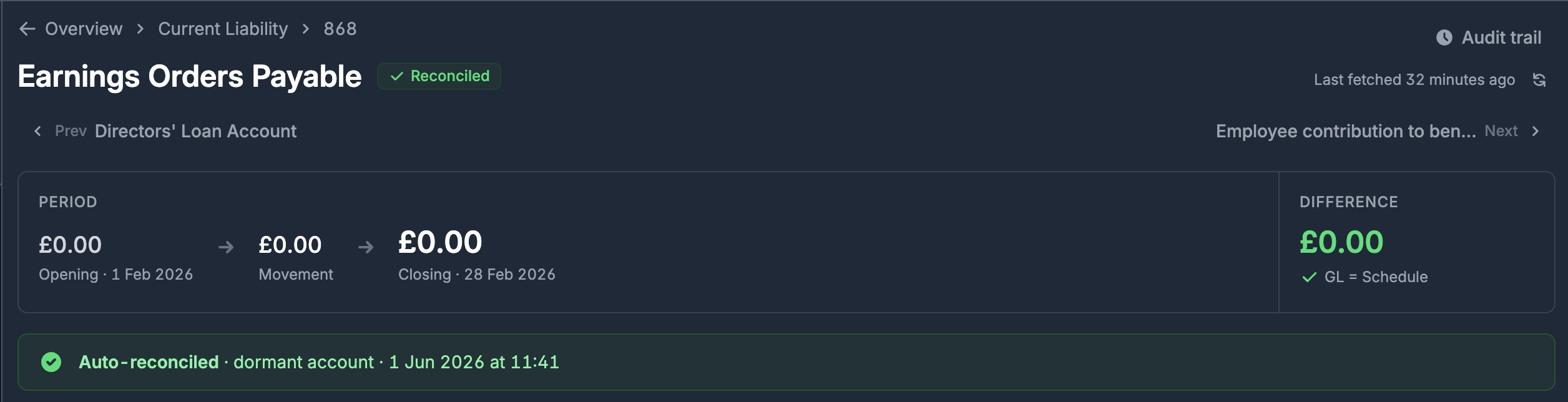
A dormant account is defined as an account where the opening and closing balance for the working paper period are both £0.
Dormant accounts are not shown in the balance sheet breakdown by default. You can view them by clicking "Show dormant accounts":

Dormant accounts are automatically marked as reconciled so there is no further action for you to take:
Managed Accounts
A managed account is defined as an account which is managed by a Briefcase financial close module, for example Prepayments, Income in Advance or Accruals.
Note that fixed asset accounts are also marked as "managed" however these are reconciled in the previous fixed assets section.
Briefcase automatically adds each item from the relevant tracker to the schedule for these accounts:
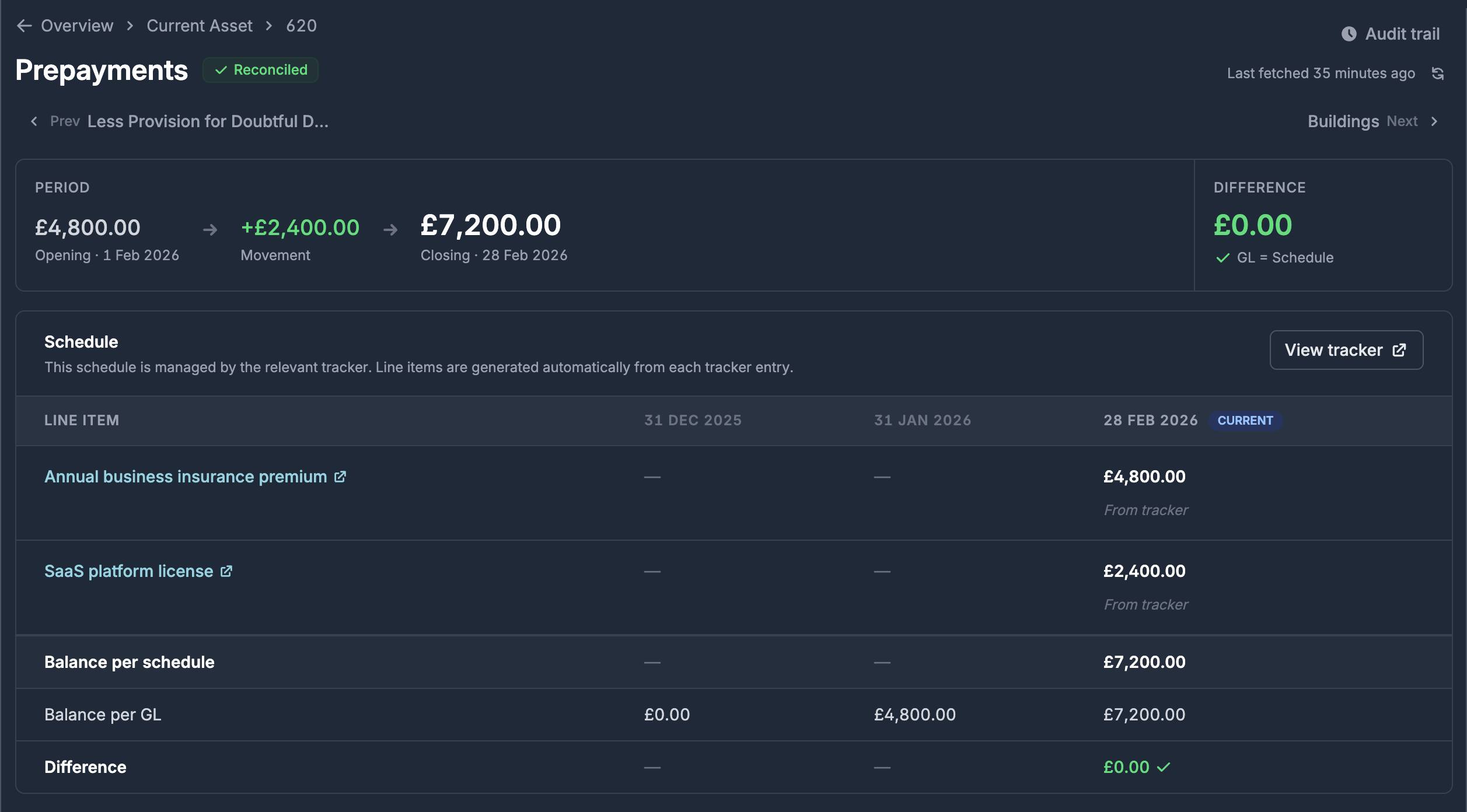
In this example, 2 prepayments are on the prepayments tracker. Each gets a line item with the supporting balance being the outstanding amount to be released from the prepayment account.
The balance per schedule is computed as the sum of the supporting balances for each line item and is compared to the balace per GL. If these balances match, the account will be automatically reconciled and there is no further action for you to take. If the balances do not match, you will need to investigate the reason why and then you have 2 options:
Update the tracker: Similar to when there is a difference in fixed assets, you may be able to fix the difference by adding a missing item to the tracker.
Reconcile with a difference: You are also able to reconcile the account manually with a difference by including a justification as to why the account balances do not match.
Closing the working paper
Once you have reconciled all accounts, you are ready to close the working paper. If there are any outstanding actions to take, you will see this in the top section of the working paper details page. Otherwise, if the working paper is ready to be closed, you will see this:

Click "Close period". This will bring up a confirmation modal, confirming that this is what you want to do.
Once you have closed the period, an immutable snapshot of the data is taken and it cannot be updated.
Click "Close period" on the modal to confirm. You will need the "Working Papers - Manage Periods" permission to do this.
When closing the period Briefcase will run a series of checks to ensure that the ledger data hasn't drifted for each account since it was reconciled.
For example, let's say you reconciled the VAT account with a balance of £10,000. If we detect that the account balance is now £10,500 in Xero, we would block closing the working paper and automatically unreconcile the VAT account as it has drifted and now needs to be reviewed and reconciled again.
If all checks pass, the working paper will be closed successfully. Briefcase will create an immutable point-in-time snapshot of the balance sheet which you will be able to reference in the future.
Viewing a closed working paper
You can view any previous working papers in the "closed" section on the working papers page:
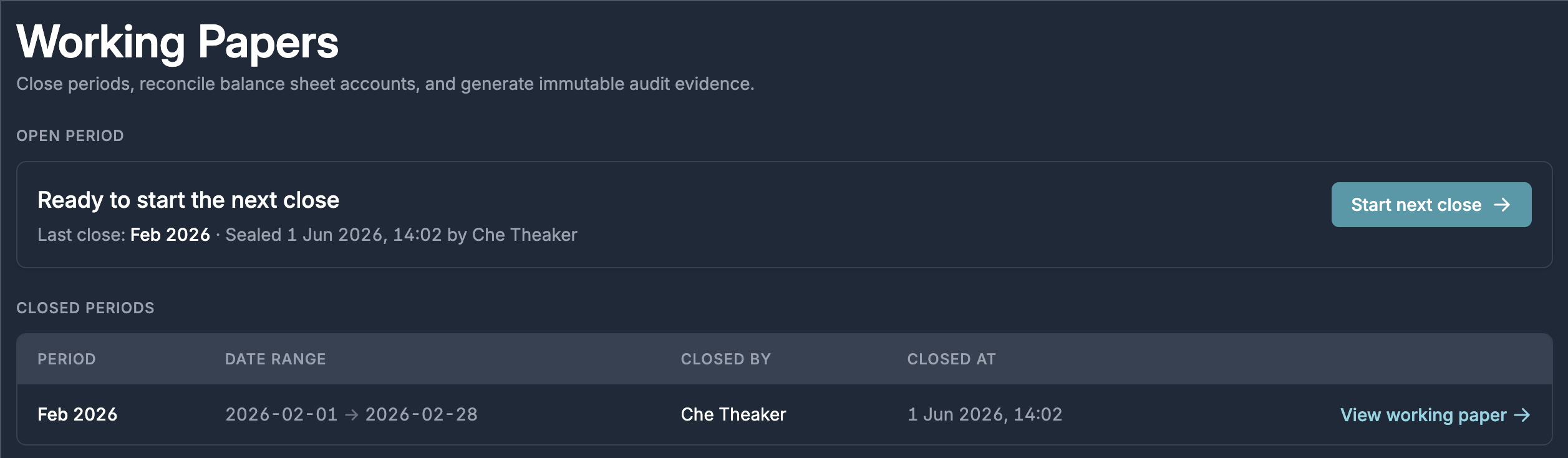
Click "View working paper" to see the closed working paper snapshot.
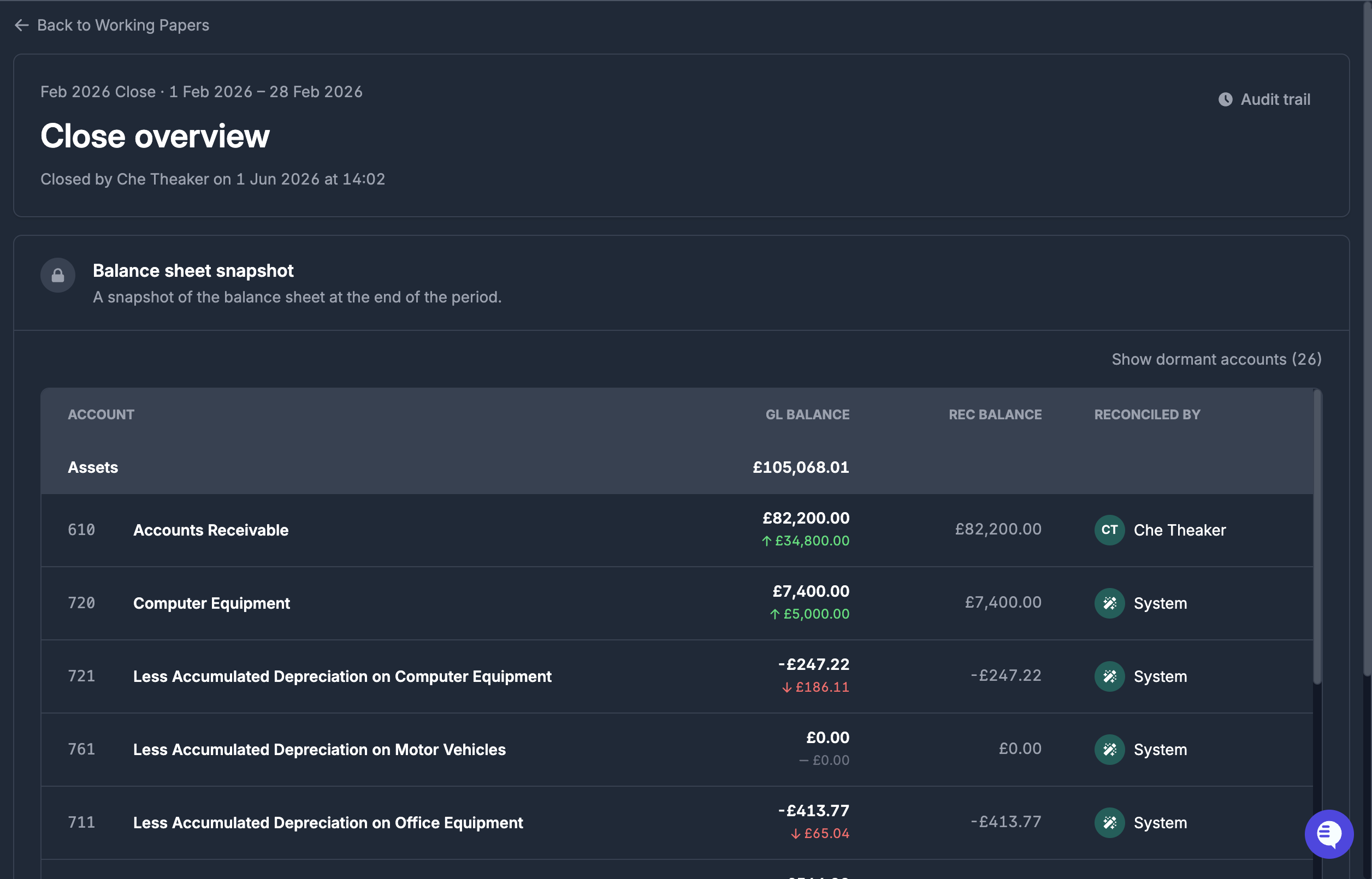
Here you will see the balance sheet accounts. This data is taken from the snapshot of each account, rather than from Xero. Therefore, if you retroactively update one of these accounts after the working paper is closed, you will not see this change here.
You can also see who reconciled each account in the "Reconciled by" column.
You can click into any of the balance sheet accounts to see more details of the reconciliation of the account.
For each account, we also show an "audit trail" where you can view who made each change to the account and when: