How does Briefcase handle prepayments?
Last updated: June 8, 2026
This guide covers how AI agent detects prepayments, drafts prepayment schedules, and posts recurring journal entries.
When you upload an invoice, after our bookkeeping AI agent codes transactions, our prepayment AI agent also reviews the transaction. If it recognises a prepaid expense, it drafts a prepayment schedule for you.
When you publish the schedule, Briefcase will post the recurring journal entries automatically.
Video walkthrough
How it works
Upload an invoice or receipt via email, web, or WhatsApp. Once the bookkeeping workflow finishes, the prepayment AI agent analyses the transaction and flags to you if it detects a prepayment.
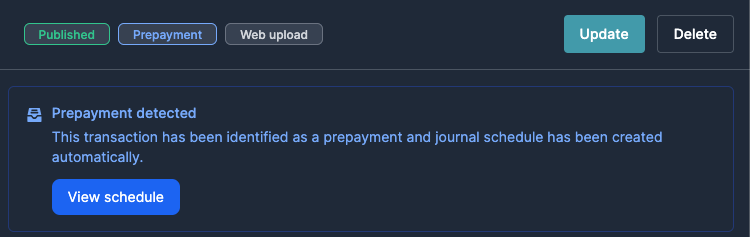
If it’s a prepaid expense, the agent creates a draft schedule which is visible in the new Prepayments tab and on the transaction details page.
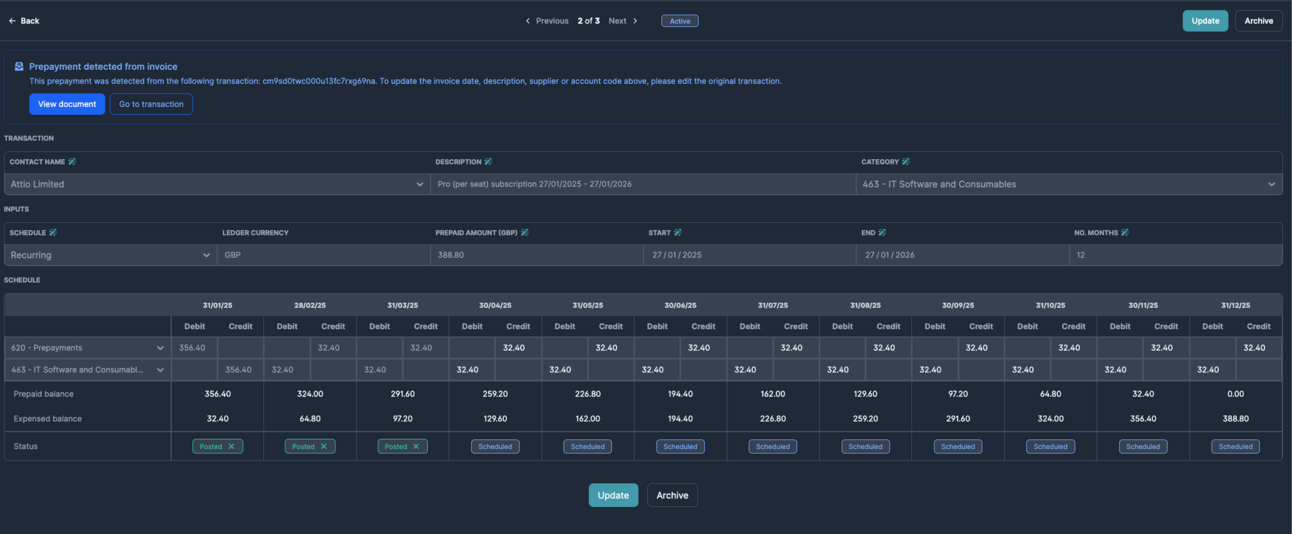
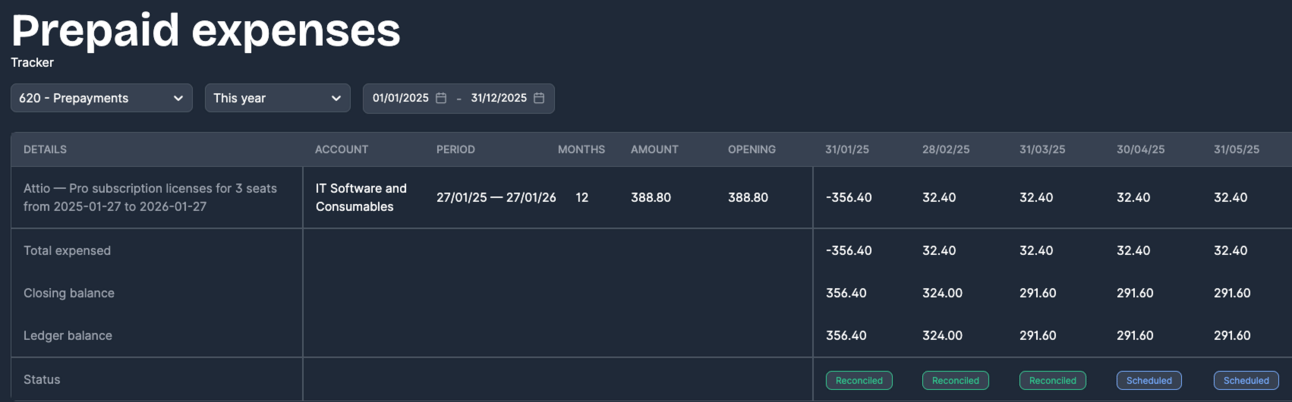
Review and publish the schedule, Briefcase will then post the journals on each period end. Prepayments can then be viewed in the tracker.
You are always in control, which means that you can always reverse journals, edit amounts, or archive the schedule whenever needed.
Migrating existing prepayments to Briefcase
Select "Add prepayments" within the prepayments inbox to manually create a prepayment.

Enter the total Prepaid Amount (excluding VAT) in your ledger currency.
Add the Opening Balance – the remaining portion still to be recognised in future months.
Set the Start Date and End Date for the remaining recognition period (i.e. only for future months not yet recognised).
Choose the appropriate Account Code and hit Publish.
Don’t forget to remove any recurring journals for this prepayment in your ledger to avoid double posting.
Managing your prepayments tracker
You can easily export the prepayments tracker in Briefcase into a CSV by selecting "Export CSV".
You can also filter the prepayments tracker by category, time period, and date range.

Manually marking a transaction as a prepayment
If our prepayment AI agent did not correctly detect and classify an invoice as a prepayment, you can do this manually within the invoice page by selecting "Mark As" and then "Prepayment".

Tracking categories for prepayments
Add a tracking category to a prepayment schedule and we’ll assign it automatically to every journal the schedule generates.
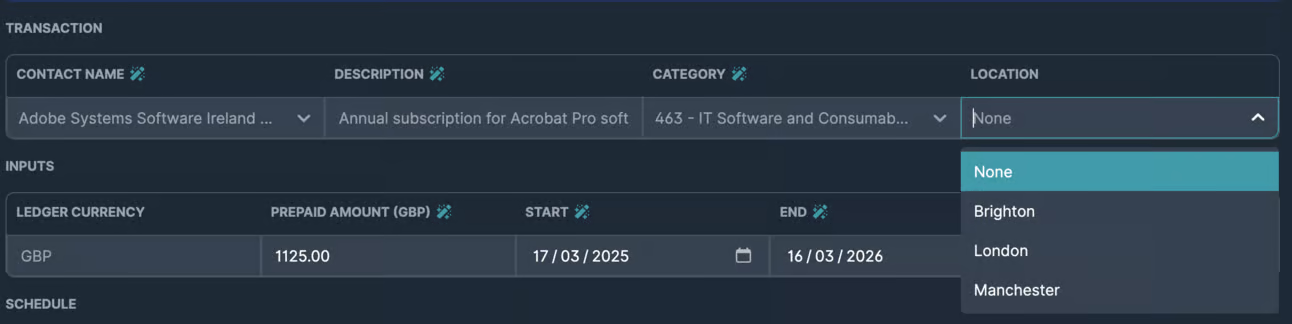
Multi-line prepayments
Briefcase can currently only do prepayment detection on single-line invoices. Invoices with multiple line items will not be processed as prepayments and you will have to create schedules manually.